
Joining an event
How to join, choosing your tickets and sessions, the organizer's questions, waiting lists and why you might not be able to join.
How do I join an event?#
- Open the event page, from Explore or from a link the organizer shared, and click Sign in to Join. Sign in or create an account; you come back to the event.
- Click Join. If the organizer pinned a notice, read it and click I have read and understood.
- Choose your tickets: how many, or on an event with sessions your ticket and your sessions (see below).
- If the organizer has questions, click Next and answer the Event Questions. Then click Join.
- On a free event you're in, or waiting for the organizer's approval. On a paid event you go straight to the payment page, and paying is what confirms your spot: see When do I need to pay?
How do tickets and sessions work?#
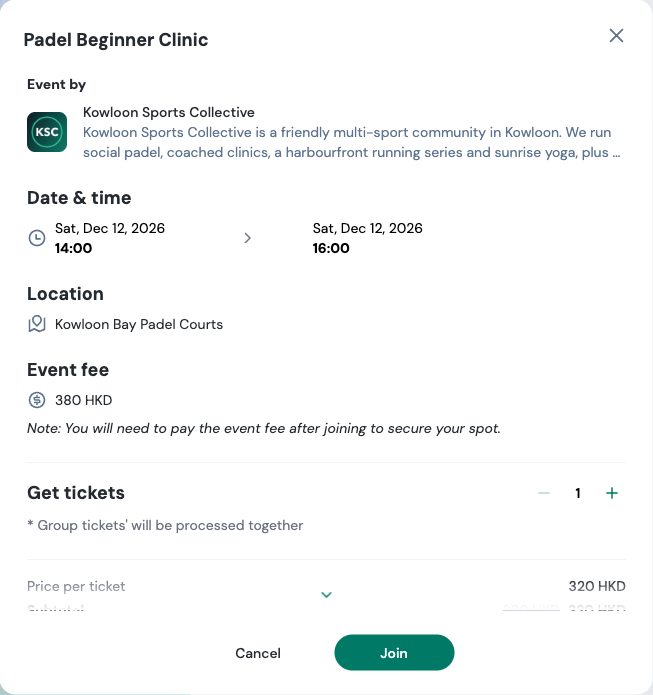
- An event without sessions: you get one ticket, or you choose how many under Get tickets if the organizer lets one person book for a group. The price per ticket can drop for bigger groups, and an early-bird price shows until its deadline. All your tickets are on one sign-up and one QR code.
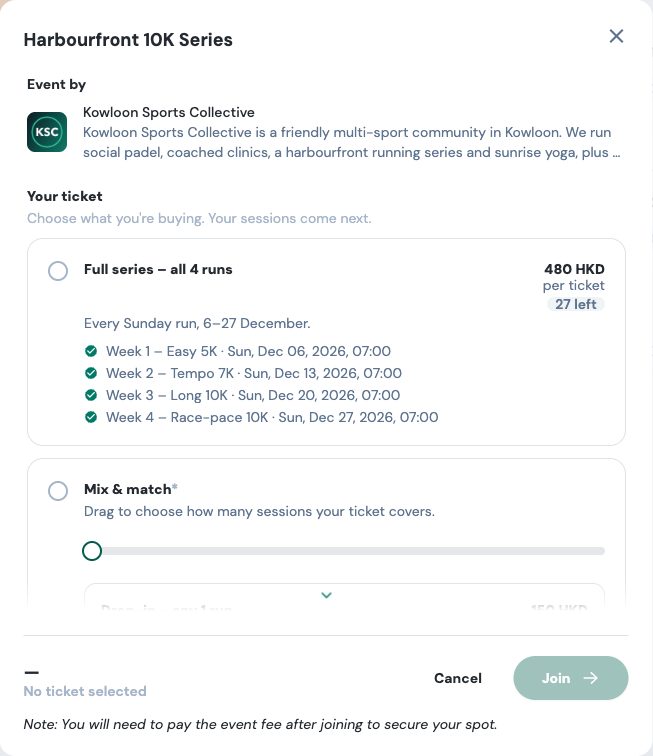
- An event with sessions (a series of runs, a multi-day event): pick Your ticket first, such as a pass for the whole series or a drop-in, then Your sessions. Some tickets come with their sessions already chosen. N left, Only N left and Sold out show what's still available. The Number of tickets applies to every session you picked.
What are the Event Questions?#
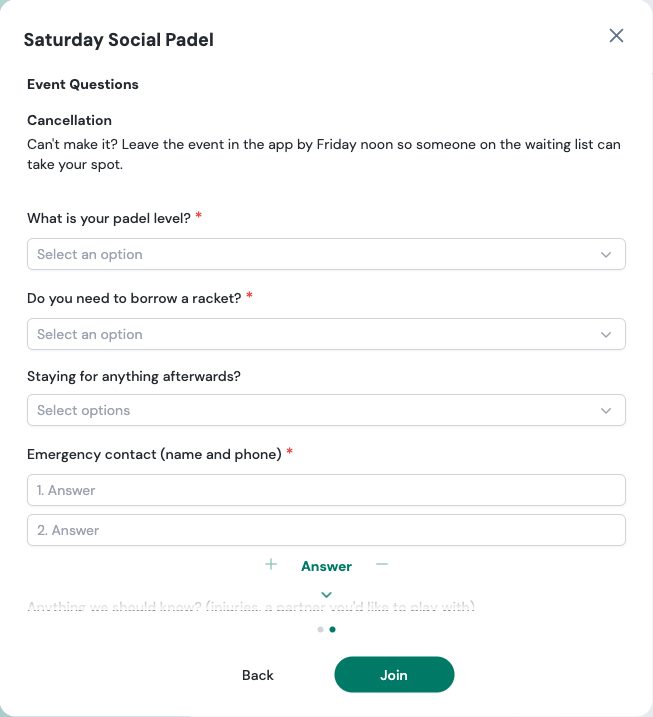
The organizer's sign-up form, such as your level or whether you need to borrow equipment. Questions marked * must be answered. After joining, Event Questions on the event page shows Your Response. To change an answer, contact the organizer.
Where do I enter a promo code?#
On the payment page, after you join: see Where do I enter a promo code?
The event is full. Can I still join?#
Sometimes. When the organizer approves sign-ups or charges for the event, a full event shows Join wait list: you join the waiting list and your status reads Pending approval. You get a spot if one frees up or the organizer adds more; on a paid event, payment opens once there's room for you.
On an event with sessions, you can join a full session's waiting list only if the organizer approves sign-ups: "… is full right now. You can still ask to join: you'll be on the waiting list, and payment opens once a spot frees up."
Otherwise the button says Event is full.
Why can't I join?#
| The button says | Why |
|---|---|
| Sign in to Join | You're not signed in yet. |
| Sign-up period has ended | The organizer's sign-up deadline has passed. |
| Event is full | No spots are left and there's no waiting list. |
| Sold out | Every ticket on this event is sold out. |
| This event has ended | The event is over. |
| Event canceled | The organizer canceled the event. |
| You have cancelled your spot | You cancelled and can't join again yourself: see Can I join again after cancelling? |
| Join Request Declined | The organizer declined your request to join. |
Inside the join dialog, Tickets not on sale or No ticket is available right now means there's nothing you can book at the moment. For anything else, contact the organizer: their phone and e-mail are under Contact information on the event page.
I can't find an event on Explore#
Some events aren't listed on Explore: the organizer shares their link instead. Ask them for it; anyone with the link can open the event and join.
Where do I find the events I joined?#
- My events (the top menu, or the bottom bar on a phone) lists every event you joined, with tabs, a search box, sorting and filters. Each card shows your status: see What your status means.
- Calendar shows your events and your teams' activities month by month.
Can I see who else is going?#
Who's going on the event page lists the people going, unless the organizer hides the list (Hidden by the organizer).
How do I share an event with friends?#
Click Share with friends on the event page to share the event or copy its link.