
Paying for an event
When to pay, paying online or by bank transfer with a receipt, promo codes, the platform fee, refunds and what happens after you pay.
When do I need to pay?#
Right after you join. A paid event takes you straight to its payment page, and paying is what gets you your spot: every paid event needs the organizer's approval, and the organizer approves you once you've paid.
- Online: your spot is confirmed as soon as the payment goes through, and you see You're going.
- Offline (a transfer): the organizer checks your receipt, confirms your payment and approves your spot.
The Ground doesn't set a payment deadline. The organizer decides when payment is due and can decline or remove sign-ups that stay unpaid, so pay as soon as you can. Check the event details or ask the organizer.
Can I pay before the organizer approves me?#
Yes, and you don't need to wait: the payment page opens as soon as you've joined.
- Online: when your payment goes through, your spot is confirmed automatically. You see You're in! – Payment confirmed, and your status changes to You're going.
- Offline: your payment shows Payment Submitted until the organizer checks your transfer. They confirm your payment and approve your spot in two steps, so for a while you may see Pending approval with Payment Confirmed.
If the organizer declines you after you paid, ask them for a refund.
The exception is a full event: while you're on the waiting list, payment is on hold until a spot frees up. See I'm on the waiting list.
How do I get to the payment page?#
Click View Payment Page on the event page. It's there on paid events once you've joined. You also land on the payment page right after joining, and the organizer may send you a link to it.
How do I pay?#
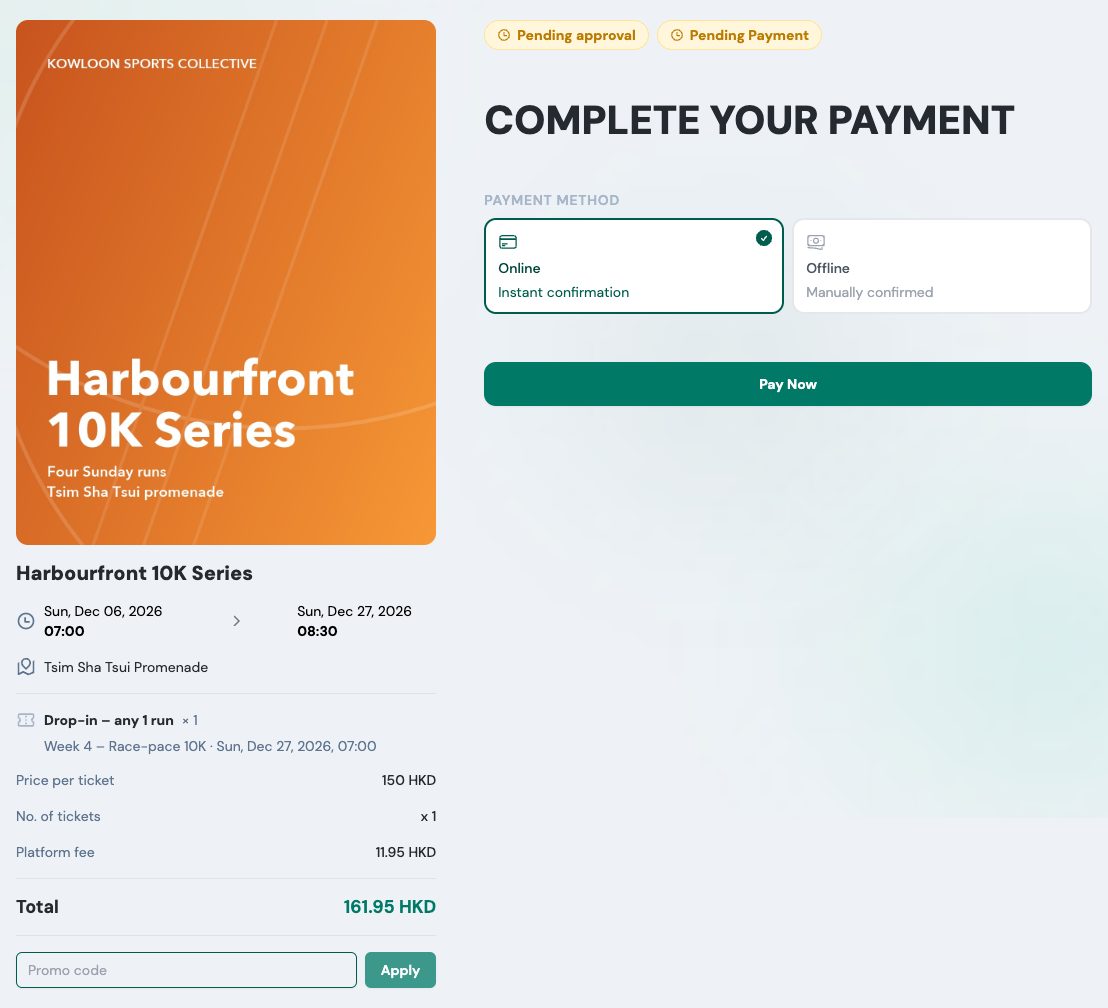
The payment page (Complete your payment) shows the price per ticket, the number of tickets, any promo code, the platform fee if there is one, and the Total in HKD. Under Payment method, choose:
- Online – Instant confirmation: click Pay Now, enter your details in the secure payment form and click Confirm Payment.
- Offline – Manually confirmed: transfer the money as the organizer's Payment instructions say (for example FPS or PayMe), then upload a screenshot of the transfer. See the next question.
You can pick only the methods the organizer has turned on. Once you've paid one way, the choice disappears.
How do I pay by FPS or PayMe and upload my receipt?#
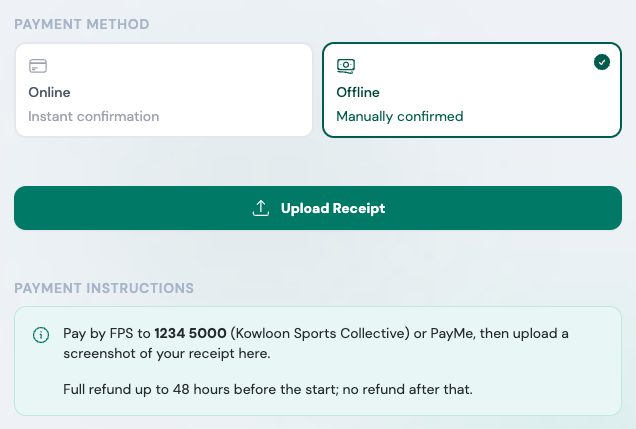
- On the payment page choose Offline. Read the organizer's Payment instructions and make the transfer in your bank or wallet app.
- Take a screenshot of the confirmation.
- Click Upload Receipt, choose the image (JPEG, PNG, GIF or WEBP, not PDF) and click Submit Receipt.
- Your payment shows Payment Submitted until the organizer checks it, then Payment Confirmed.
Sent the wrong screenshot? While the payment is submitted or rejected, click Re-Upload Receipt and then Resubmit Receipt. View Uploaded Receipt shows what you sent.
Where do I enter a promo code?#
On the payment page, with Online chosen: type the code under Promo code and click Apply. Promo codes come from the organizer.
- They work for online payment only. If you choose Offline, you pay the full price.
- "Promo code is invalid or inapplicable": check the spelling. The code may also have ended, or be for another ticket.
- If the code covers the whole price, you see "You're all set — no payment needed": click Complete registration.
What is the platform fee?#
Some organizers add a Platform fee to online payments to cover the cost of card processing. If there is one, it's shown on the payment page before you pay. Offline transfers have no platform fee.
How do I know my payment went through?#
- Online: after paying you see You're in! – Payment confirmed. Your payment shows Payment Confirmed, your spot shows You're going, and the payment page lists your receipt: reference, date, payment method and total paid. If the event filled up while you were paying, you see You're on the waiting list instead: see below.
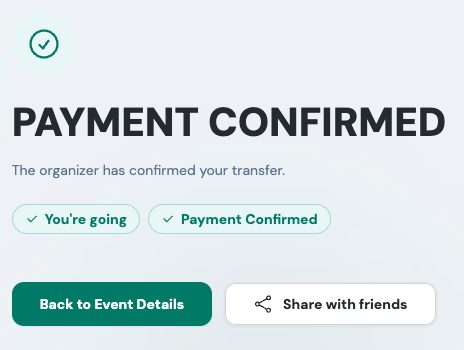
- Offline: your payment shows Payment Submitted until the organizer confirms your transfer; then the payment page says Payment confirmed – The organizer has confirmed your transfer. Your spot shows You're going once the organizer has also approved you.
Questions about a payment? The organizer's e-mail is at the bottom of your receipt: Questions about this payment? Contact…
I'm on the waiting list. Can I pay?#
Not until there's room for you. While the event is full, the payment page says You're on the waiting list and that payment is on hold until a spot frees up.
- If the last spots go while you're paying, you see Not enough spots left: your payment wasn't processed and you haven't been charged. Click Refresh.
- If your payment went through but the spots filled up first, the page says Your payment went through, but the spots filled up first, so your spot isn't confirmed yet. Contact the organizer.
The payment page says payment isn't set up#
"Payment isn't set up for this event yet. Please contact the organizer." The organizer hasn't turned on online or offline payment yet. Contact them: their phone and e-mail are under Contact information on the event page.
My card payment failed#
You see Payment failed. Please try again. A failed payment isn't charged. Click Try Again, try another card, or ask your bank why it was declined.
How do I get a refund?#
Refunds are up to the organizer: contact them (Contact information on the event page, or the e-mail on your receipt). Cancelling your spot doesn't refund you automatically.
- After a full refund your payment shows Payment Refunded (Refunded in My events). If you're still on the event you can pay again: see The organizer refunded me.
- After a partial refund the payment page says Partially refunded, and your payment still shows Payment Confirmed.