
Tickets and check-in
Where your ticket's QR code is, when it appears, how check-in works and what happens with several tickets.
Where is my ticket?#
On the event page: click the Your tickets card (with the QR icon). It opens your ticket with a QR code, your name and Show this QR code to event staff to check in. The card is there once you have a spot (You're going), until the event ends.
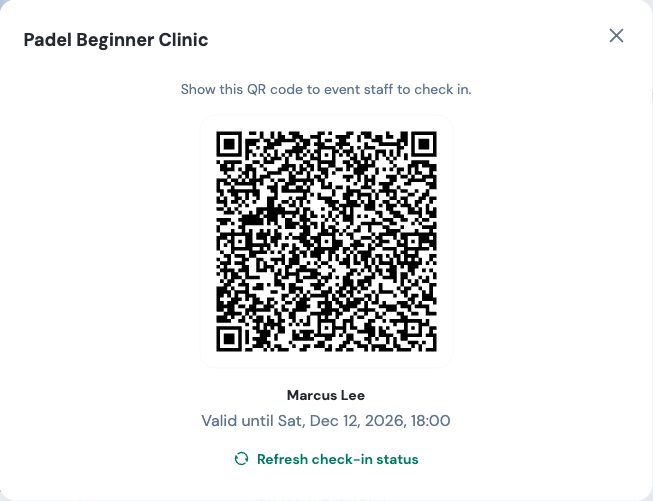
You don't need to print anything: show the QR code on your phone. To get to it quickly, install The Ground on your home screen.
Why don't I have a ticket yet?#
Your ticket appears once you have a spot (You're going). On a paid event that's once you've paid: straight away when you pay online, or once the organizer has checked your transfer and approved you. While your spot is Pending approval, opening it says Your ticket isn't ready yet — your spot needs to be approved first. If you cancelled or were declined, there's no ticket.
How do I check in?#
Show your QR code to the event staff and they scan it. Your event page then shows Checked in. If it doesn't update, click Refresh check-in status on your ticket.
I booked several tickets. Do I get several QR codes?#
No: one QR code covers all your tickets, and staff check in as many people as arrive. If only some of you are in, your ticket says, for example, 1 of 2 seats checked in. Show this QR to check in the rest.
Do I need a ticket for each session?#
No. On an event with sessions, one QR code covers the whole event.
My ticket says it has expired#
This ticket has expired. Check-in is closed for this event. The event is over or check-in has closed. If you think that's wrong, contact the organizer.