
Cancel or delete an event
Cancelling notifies attendees and closes the event but keeps the records; deleting wipes everything. When to use which, and what happens to payments.
Both actions are at the bottom of the event's Setting tab.
| Cancel Event | Delete Event | |
|---|---|---|
| Attendees are notified | Yes – e-mail and WhatsApp cancellation notice, with your reason | No |
| Event page | Stays online with a "This event has been canceled" banner; nobody can join | Removed – the link stops working |
| Member list, payment records, form answers, check-ins | Kept – you can still export and refund | Permanently deleted, no backup |
| Refunds | Not automatic – issue them yourself | Not possible afterwards |
| Can be undone | No | No |
| Available for | Active (published) events that have not ended | Any event |
Rule of thumb: if anyone has joined, cancel. Only delete test events and drafts nobody has joined.
Cancel an event#
- Setting tab → Cancel Event → Cancel Event.
- Optionally type a cancellation reason (up to 500 characters) – it is included in the e-mail and WhatsApp notice, e.g. "Due to unexpected bad weather".
- Click Confirm Cancellation. You see "Event canceled. Attendees are being notified."
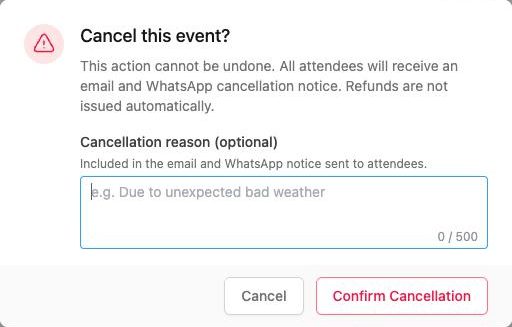
After cancelling:
- Approving new members is blocked ("Cannot approve members for a canceled event.").
- Paid attendees still show their payment status. Refund Stripe payments from each member's payment page – see Refunds. Offline (FPS / PayMe) payments must be returned outside The Ground.
- You can still send a notice, export the member list and duplicate the event for a new date.
Messages you may see: "Only published events can be canceled." (inactive event), "Past events cannot be canceled.", "This event has already been canceled."
Delete an event#
- Setting tab → Delete Event (red card) → Delete Event, or use Delete on the event's row in the Events list.
- Confirm. You see "Event deleted successfully."
Deleting removes members' access to the event and every record attached to it. It does not delete the people from your organization – they remain in Members.
Postpone instead#
If the event will happen later, do not cancel: in Setting either tick Event date to be Announced or set the new dates, click Update, and send a Notice with Push Notification on. Sign-ups, payments and approvals stay intact.