
Sessions and multiple ticket types
Run multi-day or multi-track events – create sessions with their own time, venue and capacity, then sell ticket types that bundle specific sessions or let members pick any N.
A normal event is one thing at one time with one ticket. Multiple sessions (and ticket types) turns an event into a small programme:
- Sessions – individual parts, each with its own name, description, start/end, location, capacity and status (Open / Hidden). Example: Day 1 – Basics, Day 2 – Drills, Day 3 – Game.
- Ticket types – what people buy. Each ticket type has its own price (with optional early bird, group tickets and discounts) and is linked to sessions in one of two ways.
Typical uses: a 4-week beginner course, a two-day camp with a single-day option, a festival with morning and afternoon tracks, a tournament with player and spectator tickets.
Turn it on#
In the wizard (Step 1 or Step 2) or later in Setting → Time & Venue, switch Multiple sessions to On and confirm the alert. From then on:
- The Set Capacity field is replaced by per-session capacity ("Set capacity on each session instead").
- The Ticket card becomes a ticket-type editor.
- Until you have at least one Open session and one Live ticket type, the event dashboard shows a banner – "This event has no sessions or ticket types yet. Create them on the Settings page so members can join." – and nobody can join.
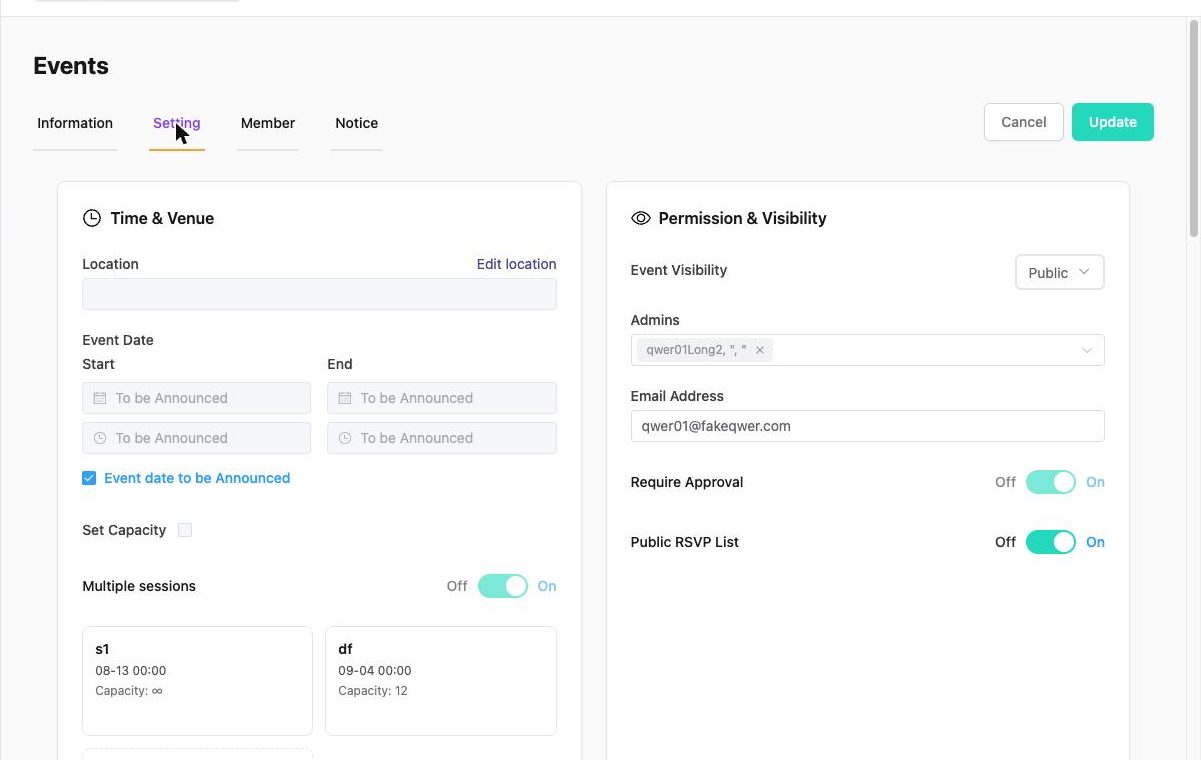
Sessions#
Click Add session (or click an existing session card to edit it).
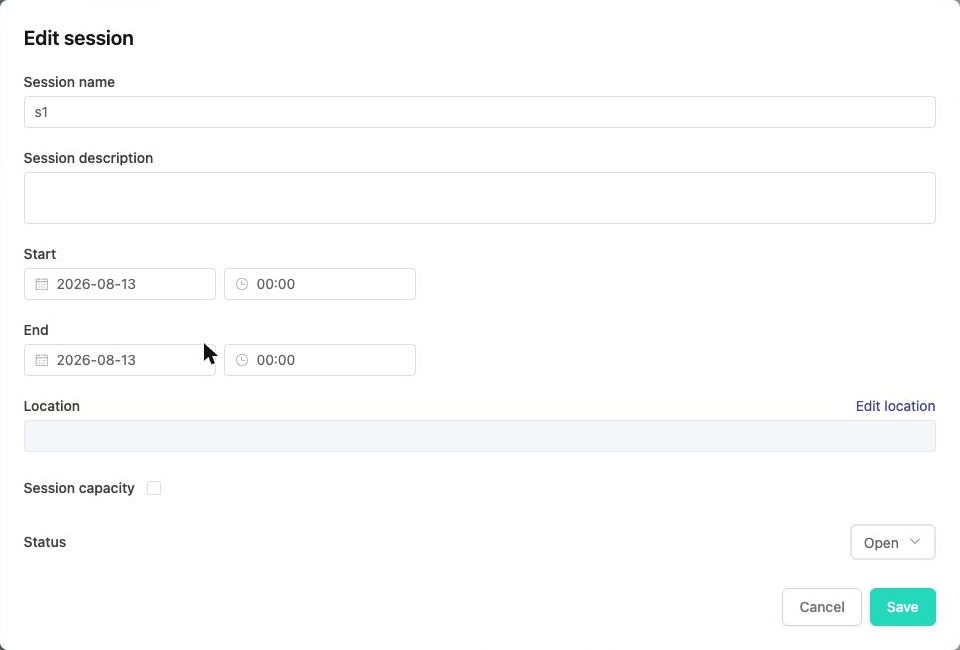
| Field | Notes |
|---|---|
| Session name / description | Shown to members when they choose sessions. |
| Start / End | Date and time of this session. |
| Location | Optional – use it when sessions are at different venues. |
| Session capacity | Tick to cap this session; ∞ otherwise. Shown on the card as Capacity: 12 / Capacity: ∞. |
| Status | Open – offered on the join form to new members. Hidden – not offered for new joins; members already assigned stay in it. Use Hidden to close a full or cancelled day without removing people. |
Sessions are saved when you click Save in the dialog; the event itself still needs Update. Rules:
- With Multiple sessions on you need at least one session (two if you want it to be meaningful – the admin warns "Add at least 2 sessions before saving with Multiple sessions enabled.").
- At least one session must be Open, or you will be asked "Save anyway?" because members may be blocked from joining.
- Sessions with accepted members cannot be deleted. Set them to Hidden instead.
- Unsaved new sessions cannot be added to a bundle until saved ("Save a session first to add it to this bundle.").
Ticket types#
The Ticket card shows Ticket 1 of N with arrows to page through, and Add ticket type.
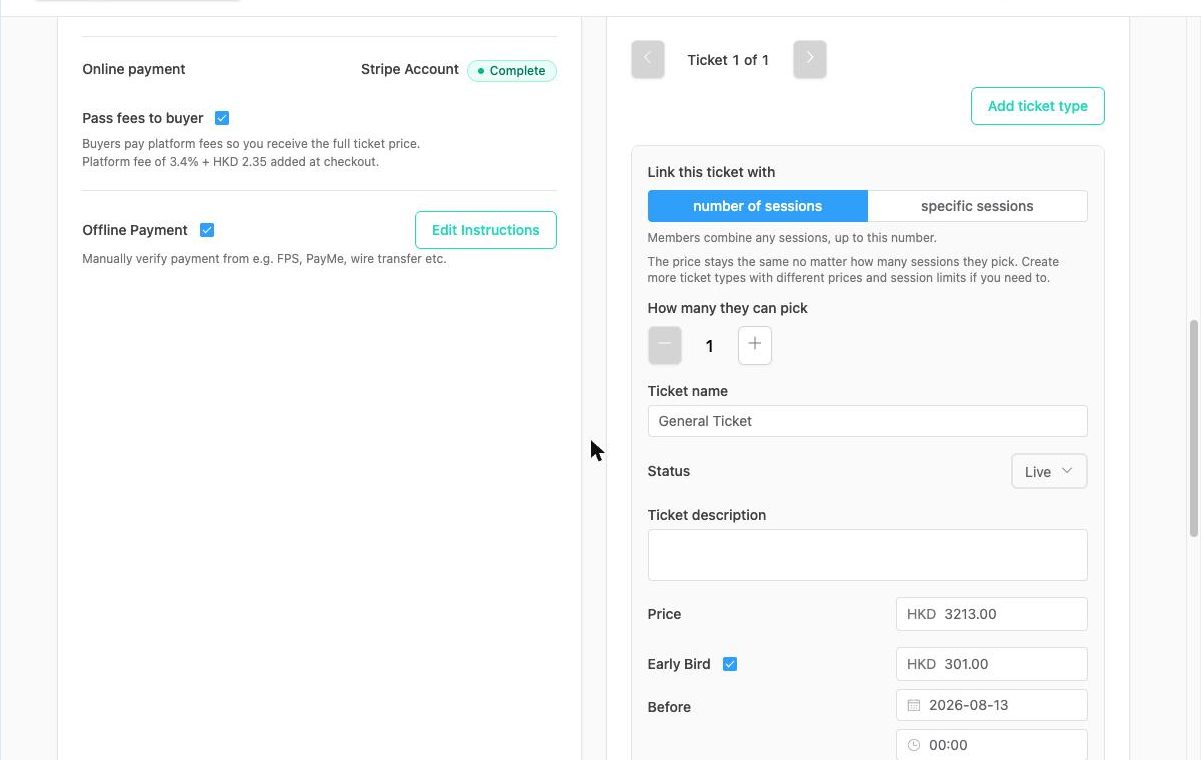
Each ticket type has:
- Link this ticket with – the key choice:
- number of sessions (mix & match) – "Members combine any sessions, up to this number." Set How many they can pick. The price is the same however many they pick, so create separate ticket types for 1, 2 or 4 sessions if you want different prices.
- specific sessions (bundle) – tick the sessions included. "Members get exactly these sessions. They cannot swap or drop any." A bundle that includes a Hidden session cannot be joined.
- Ticket name and Ticket description – e.g. "Full course – all 4 sessions", "Drop-in – any 1 session". (With multiple ticket types off, the single ticket is called General Ticket and cannot be renamed.)
- Status – Live (visible and purchasable) or Hidden (not shown to buyers). At least one ticket type must be Live.
- Price, Early Bird, Group tickets (max seats per person), Group Ticket Discounts, Promo codes – all per ticket type. Promo codes created inside a ticket type only work when buying that type.
- Reorder – drag ticket types to set the order buyers see; the order is saved when you click Update.
The sign-up deadline stays event-wide.
What members see#
On the event page each Live ticket type is listed with its price and description. When joining, the member picks a ticket type, then (for mix & match) chooses their sessions up to the allowed number, then pays as usual.
Managing members of a multi-session event#
- The Member tab gains a Session capacity button showing approved seats per session.
- A member's card shows their ticket and Selected sessions. Use Reassign sessions to move a pending or approved member to other Open sessions ("Select 1 to N live sessions for this member"). Declined members cannot be reassigned.
- Approving beyond a session's capacity triggers "Session capacity exceeded" – you can continue anyway if you accept the overbooking.
Duplicating#
Duplicate copies the event without its sessions and ticket types (and without members). Recreate them in the copy.