
Offline payments (FPS, PayMe, bank transfer)
Accept payments outside Stripe – write clear instructions, let members upload proof, then verify each payment with one click.
Many Hong Kong communities collect by FPS, PayMe, Alipay HK or bank transfer. The Ground supports this with Offline Payment: the member sees your instructions, pays you directly, uploads a screenshot, and you confirm it in the admin. No processing fee.
You can enable offline payment alone or together with Stripe – members then choose how to pay.
Enable it#
- In the Create Event wizard (Step 2) or Setting → Payment card, tick Offline Payment.
- Click Add Instructions (later Edit Instructions) and write your instructions – up to 1000 words, with formatting, links and images (a PayMe QR code image works well).
- Click Save in the dialog, then Update the event.
If you tick the box but leave the instructions empty you will see "Offline payment instructions missing – members will see a default message until you add instructions." You can save, but write them soon.
What to put in the instructions#
- Payment method(s) and the exact account: FPS ID / phone number / bank + account number, account name as the bank shows it
- The amount (or "as shown on your ticket") and what to write in the reference / remark – e.g. the member's name and the event
- How fast you confirm ("we verify within 24 hours") and a contact for problems
- Your refund / cancellation policy
What the member does#
- Joins the event and (if approval is required) waits to be approved, or pays immediately if allowed.
- Opens the payment page – from the event in the app, or from the Payment Page Link / reminder you send – chooses Offline payment, reads your instructions and pays you.
- Uploads a screenshot of the transfer as proof. Their payment status becomes Submitted ("Offline Record Submitted").
Verify the payment#
- Open the event → Member tab. Members waiting for your check show a payment chip of Submitted; unpaid ones show Pending.
- Click the member's card. Under Payment, open Offline Payment Record to see the uploaded proof, amount and time.
- Check your bank / PayMe for the incoming transfer, then change the Payment status to Paid. If the proof is wrong, set Invalid – the member can upload again.
- Confirm the prompt ("Do you want to update the payment status to …?").
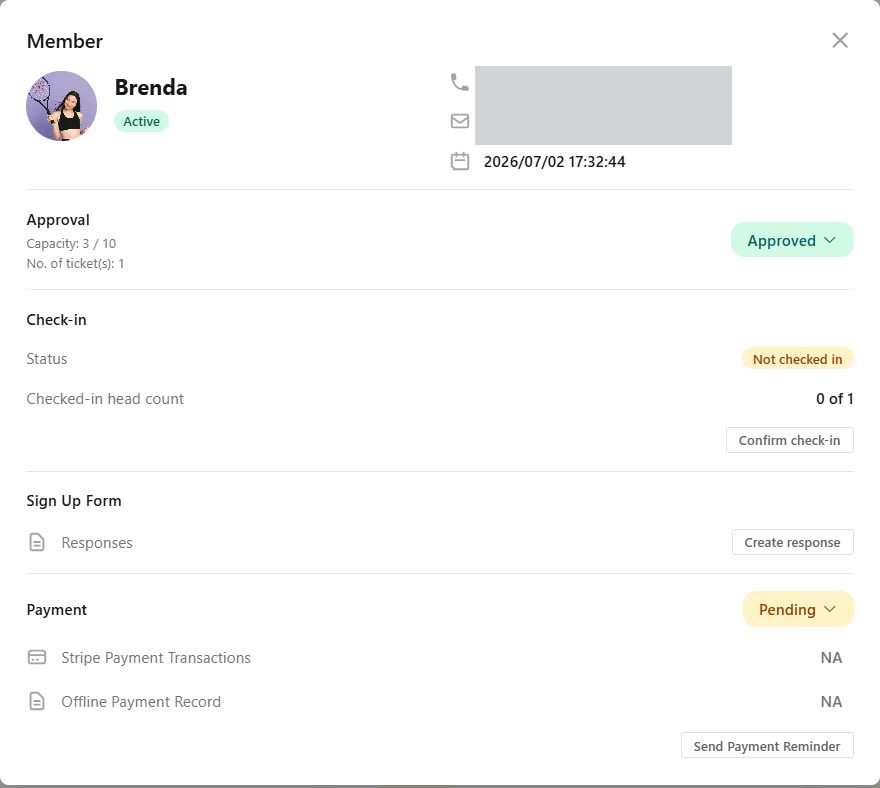
Approving the member (Approval → Approved) and marking them Paid are separate steps – for a paid event the member's seat is confirmed when both are done.
Chasing payments#
- Individually: member card → Send Payment Reminder → Confirm. The member receives the payment link.
- In bulk: the payment status chips in the Member tab let you spot every Pending member at a glance; send reminders from each card.
- Set a sign-up deadline and say in the instructions that unpaid sign-ups are declined after it.
Statuses at a glance#
| Payment status | Meaning |
|---|---|
| Pending | Nothing received yet (also Waiting for submission) |
| Submitted | Member uploaded an offline payment record – needs your check |
| Paid | Confirmed (by you for offline, automatically for Stripe) |
| Invalid | You rejected the proof |
| To Be Confirmed | Awaiting confirmation |
| Refunded / Partially Refunded | Stripe refund issued |