
A tour of the dashboard
What every part of the admin does – the sidebar, the organization switcher, the Events and Teams tabs, list and grid views, and the account menu.
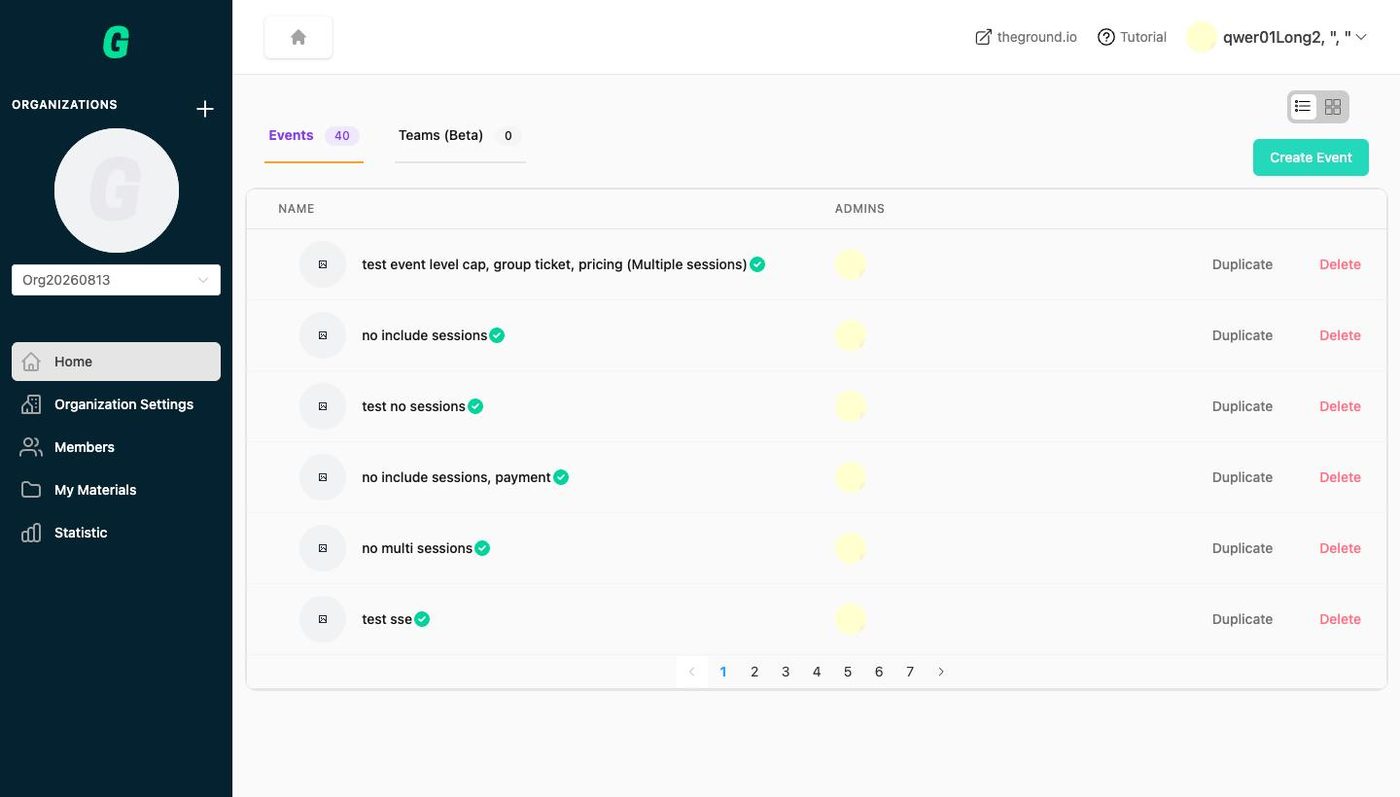
Left sidebar#
| Item | What you find there |
|---|---|
| + (ORGANIZATIONS) | Create another organization. |
| Organization logo + dropdown | Shows the organization you are working in. Open the dropdown to switch – each entry is labelled free or premium (its plan). Everything else on the screen belongs to the selected organization. |
| Home | The Events and Teams (Beta) lists. |
| Organization Settings | Information, Contact and Stripe Payment tabs for the selected organization. |
| Members | Everyone in the organization: the Organizations you belong to, this organization's Admins, and all Members across its events and teams. Also where you invite admins. |
| My Materials | Every file you have uploaded (PDF, image, video, YouTube link), with download and details. |
| Statistic | Attendance rate per team and per member (teams only). |
Top bar#
- Breadcrumbs (house icon → Event Details, Team Details, Members …) – click the house to return home.
- theground.io – opens the public site in a new tab.
- Tutorial – opens the interactive 84-step product tour.
- Your name ▾ – User Account (profile and subscription), Setting Page (login details, password, language) and Logout.
Home: Events and Teams#
The two tabs show how many events and teams the organization has.
- List / grid toggle (icons top right) – the grid shows event posters and "Today Activity"; the list is denser and has row actions.
- Create Event / Create Team – opens the creation wizard. If the button is grey, see Why is Create Event greyed out?
- Row actions (list view): events have Duplicate and Delete; teams have Delete. Deleting is permanent – there is a confirmation step.
- Green check next to an event name means the event is active. Events without it are inactive (this normally happens when an organization's subscription has expired) and cannot be updated or send notices until the plan is renewed.
- Click an event or team name to open its dashboard.
Inside an event#
Tabs: Information (poster, description, links, admins), Setting (everything configurable), Member (sign-ups, approvals, payments, check-in), Notice (messages to attendees). See Event settings explained.
Inside a team#
Tabs: Information, Activites (the calendar of sessions), Setting, Member, Notice. See Teams (Beta).
Live updates#
Member lists refresh in real time. If someone joins while you are looking at the list you will see "Someone has just joined, please refresh to keep the list up-to-date"; after a long idle period you may see "Session expired, please refresh" – just reload the page.
Unsaved changes#
Forms with an Update button (event settings, team settings, organization settings) warn you – "You have unsaved changes. Do you want to leave without saving?" – if you navigate away before saving. Choose Leave Without Saving or go back and click Update.