
Create your organization
Set up the organization that will own your events and teams – name, logo, description, sport tags, contact details and whether it is listed on the Explore page.
An organization is the container for everything else: events, teams, members, admins and the Stripe account all belong to it. Creating one takes about two minutes.
Create the organization#
- In the left sidebar, click the + next to ORGANIZATIONS. (Brand-new accounts also get a big Create organization button on the home page.)
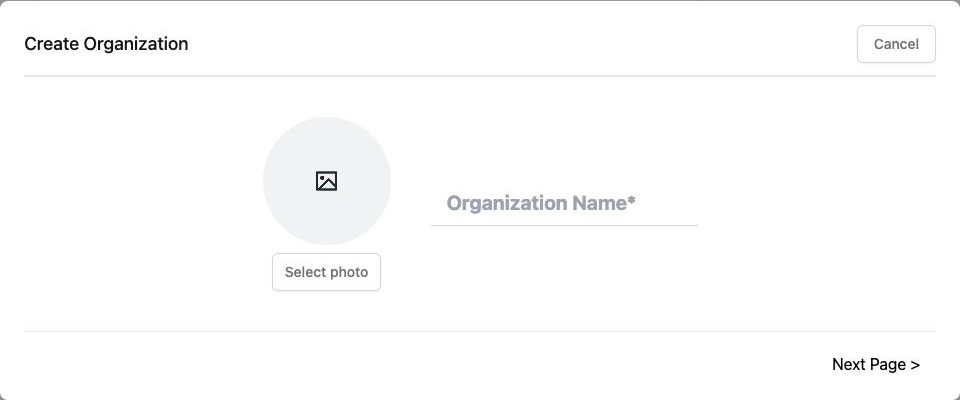
- Step 1 – identity. Click Select photo to upload a square logo (it is shown as a circle everywhere), type the Organization Name, then click Next Page >.
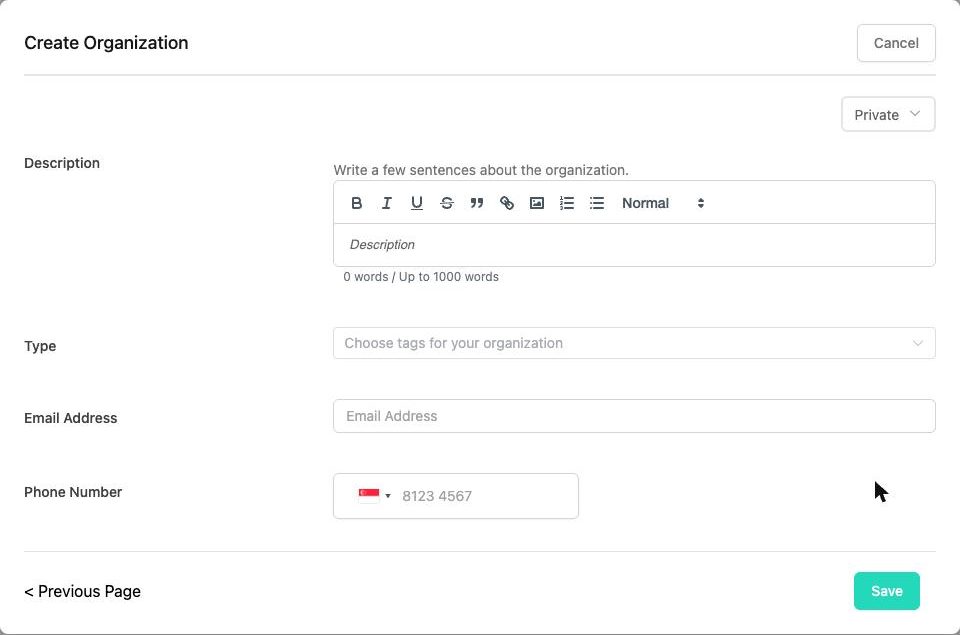
- Step 2 – details.
- Private / Public (dropdown, top right) – see Public or private? below.
- Description – up to 1000 words. The toolbar lets you add bold text, links, images and lists. Members see this on your organization page.
- Type – pick one or more sport / activity tags (Badminton, Running, Yoga-style "Others", Pickleball, Hiking …). Tags help people find you on the Explore page.
- Email Address and Phone Number – the organization's public contact details. Add the e-mail now – it is required before you can connect Stripe.
- Click Save. You will see "Organization created successfully." and the new organization is selected in the sidebar.
Public or private?#
| Public | Private | |
|---|---|---|
| Listed on the theground.io Explore page | Yes – people can find you and request to join | No |
| Reachable through your event pages | Yes | Yes – anyone who has one of your event links can still see the organization |
| Best for | Communities that want to grow | Companies, schools, closed groups |
You can change this at any time in Organization Settings → Information with the toggle "Organization can be found & requested to join on Explore Page (Invite only if toggle off)".
After creating it#
- Your logo and name appear in the sidebar; the organization dropdown lists every organization you belong to together with its plan (free / premium).
- Home now shows the Events and Teams (Beta) tabs for this organization.
- Complete the profile whenever you like under Organization Settings: description, tags, contact e-mail/phone and social links (Instagram, Threads, Facebook, YouTube, X and a website).
- Selling tickets? Continue with Set up Stripe.
Was this article helpful?Thanks for the feedback! Still stuck? Email us.