
Schedule team activities
Add one-off or repeating activities to the team calendar, edit an activity, share its RSVP page on WhatsApp, and attach materials.
Activities are the individual sessions of a team – Tuesday training, Saturday match, a one-off workshop. Members are asked whether they are coming, and you take attendance afterwards.
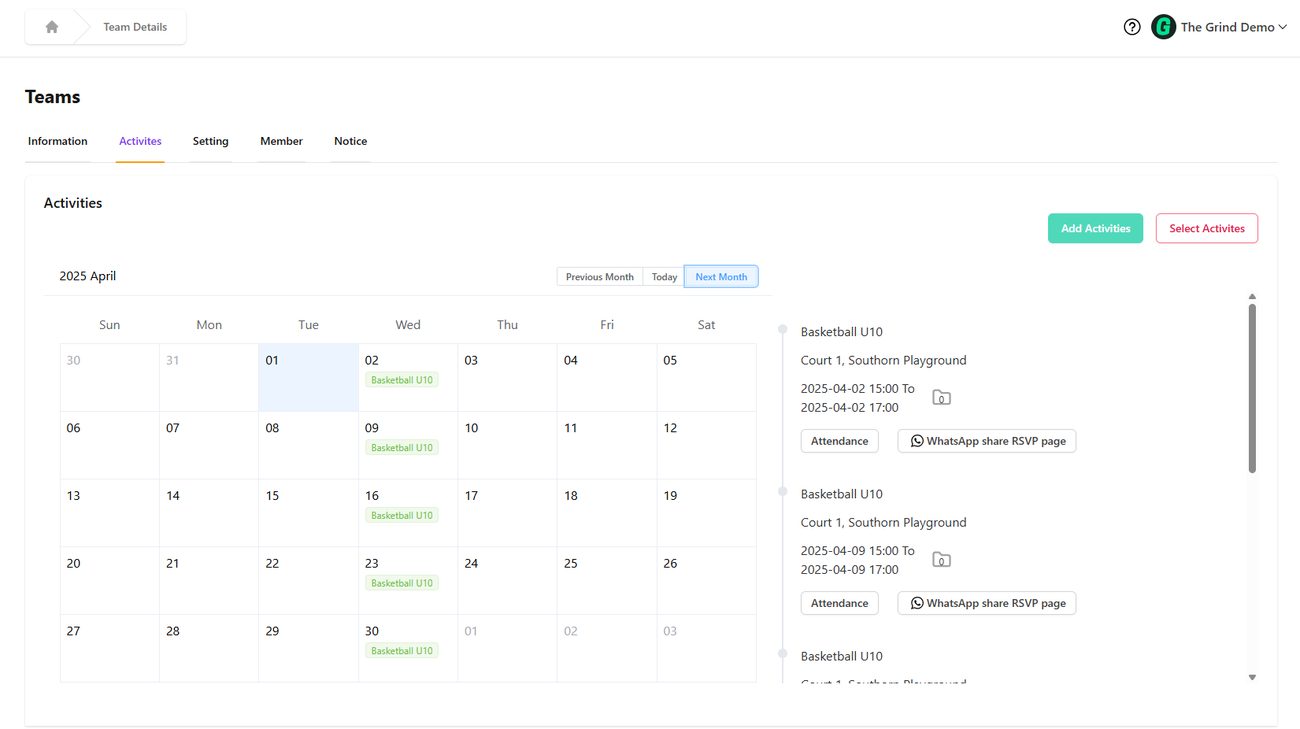
Add an activity#
- Open the team → Activites tab → Add Activities.
- Name (required) and an optional Description (up to 1000 words).
- Location – Edit location for the map picker, or leave blank to use the team's location.
- Date – start date/time and end date/time.
- Repeat – None, Daily, weekly, Biweekly, Monthly, Yearly or Custom. For anything other than None an Until date appears – the last day the series runs ("Please enter an 'until' date", and it must be after the start).
- Click Save. One activity is created per occurrence.
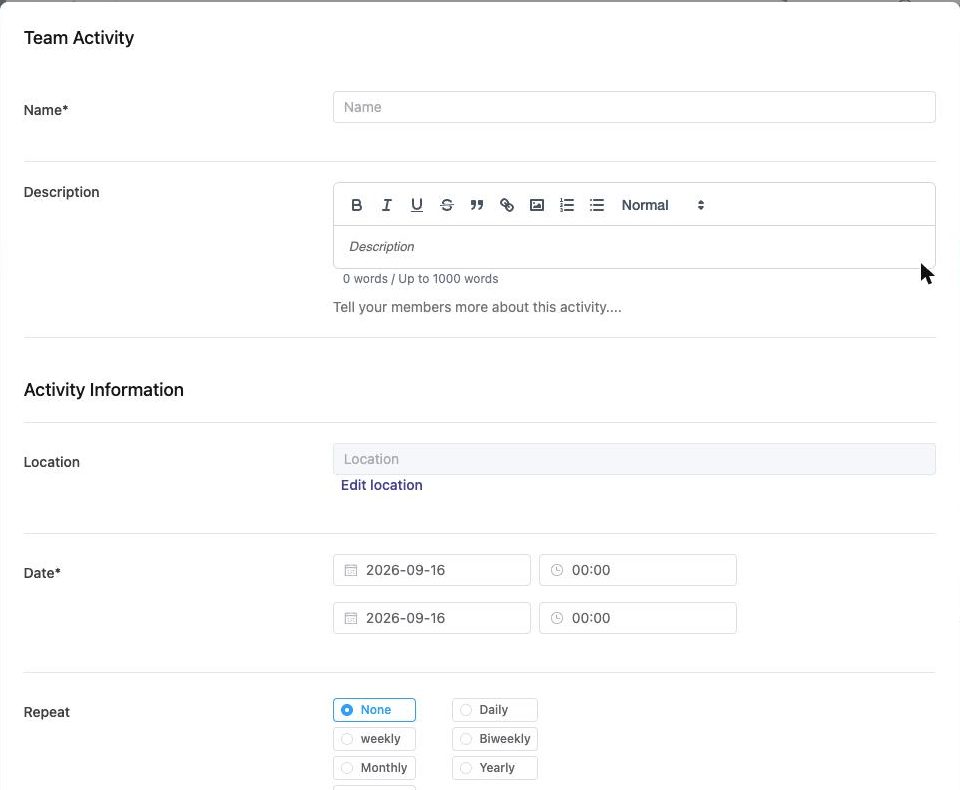
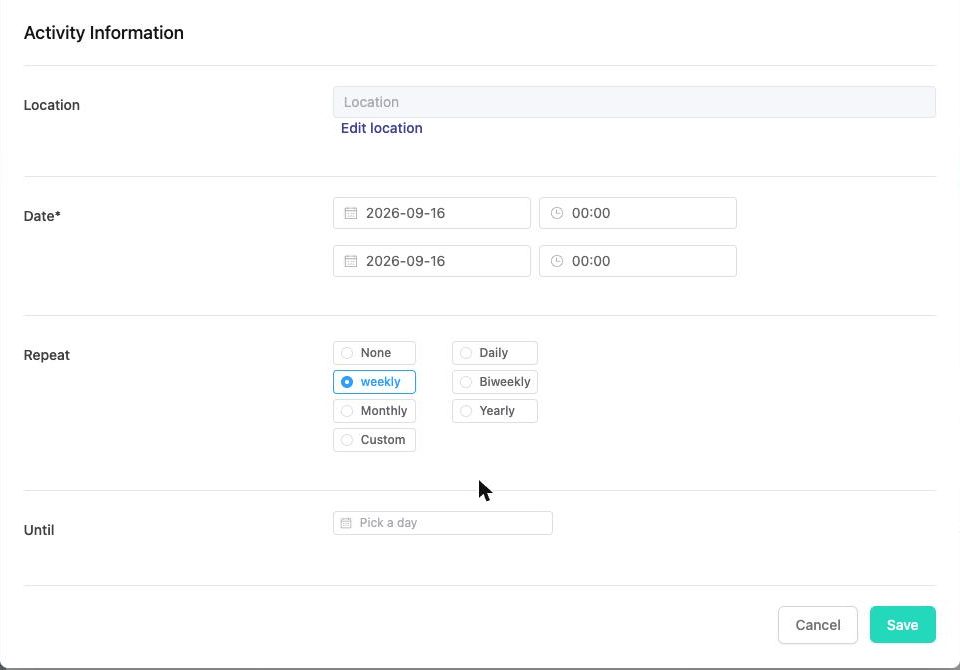
Members are added to the new activities automatically if the team setting "When creating new activities, auto-add all existing members" is Yes; otherwise add them per activity (Add/Remove Member).
Custom repeats#
Custom lets you choose Daily or Weekly with an interval ("every 2 weeks") and, for weekly, the weekdays (e.g. Tuesday and Thursday). Combine with Until to generate a whole term in one go.
The calendar#
Days with activities are highlighted; click a day to see its activities on the right. Previous Month / Today / Next Month move around. Select Activites lets you pick several activities at once (for example to review a whole week).
Activity details#
Click an activity to open Activity Details.
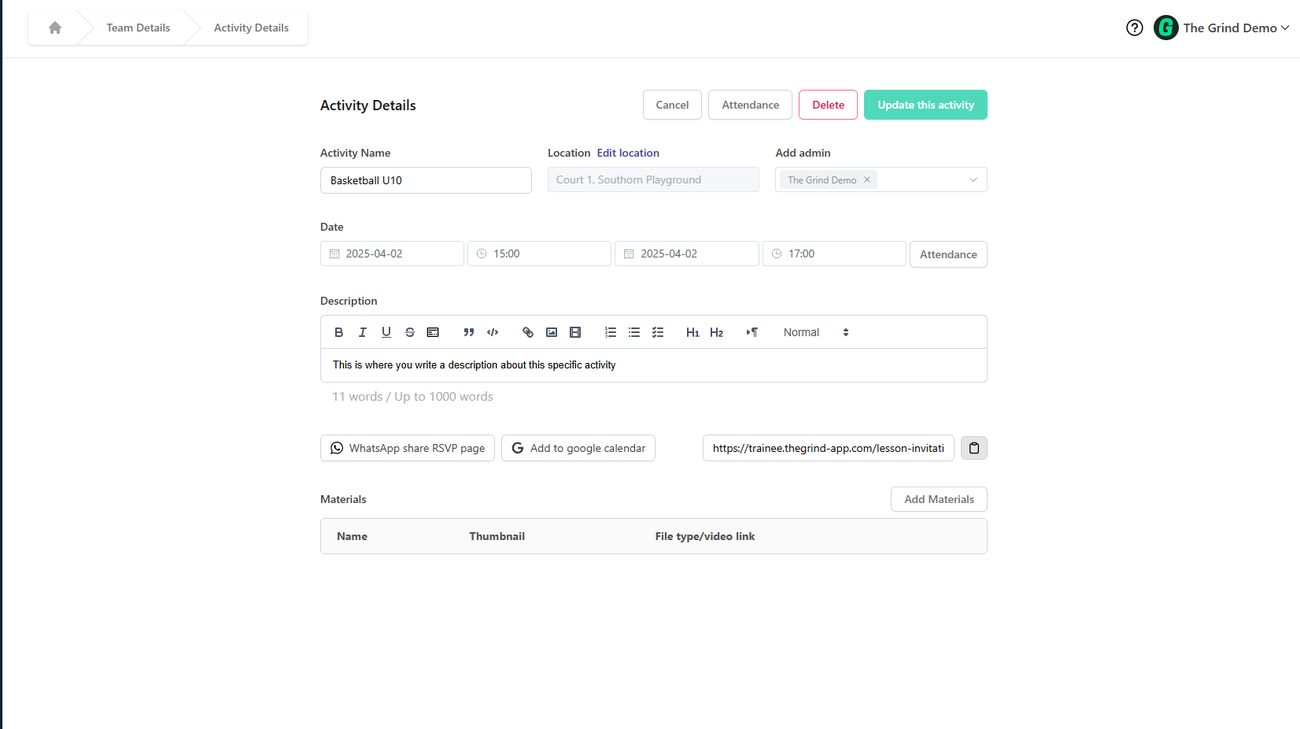
- Activity Name, Location, Add admin (which admins run this session), Date and times, Description – edit and click Update this activity.
- Attendance – opens the attendance sheet. Take attendance →
- WhatsApp share RSVP page – opens WhatsApp with "Sign up for the activity at ‹link›" so members can confirm from their phones.
- Add to google calendar – creates a calendar entry.
- Invitation Link – copy the activity's own page link.
- Materials – Add Materials to attach a PDF, image, MP4 or a YouTube link for this session (drills, playlists, homework). Materials →
- Members – Manage to add or remove members for this activity only, invite via WhatsApp, or Export to CSV.
Editing a series#
Repeating activities are created as individual activities. Editing one changes only that occurrence – to change a whole series, delete the remaining activities and create the series again with the new details.
Team notices for activities#
To tell everyone about a change ("training moved to Court 3"), post a team notice – it goes out by e-mail, WhatsApp and app notification.