
Send notices to attendees
Post announcements to everyone in an event – as text or PDF – and optionally push-notify their phones.
The Notice tab of an event is your announcement board: meeting point, what to bring, schedule changes, results.
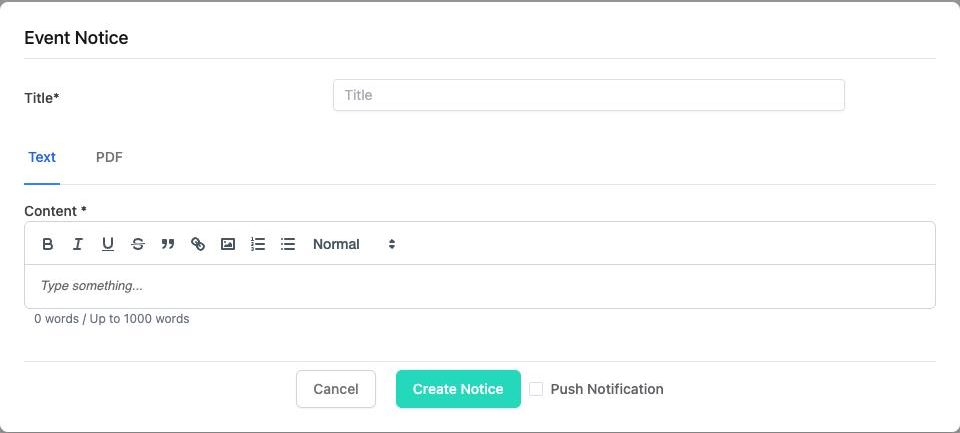
Create a notice#
- Open the event → Notice tab → Create Notice.
- Enter a Title (required).
- Choose the content type:
- Text – write up to 1000 words with formatting, links and images.
- PDF – upload a file instead (a rundown, map, waiver).
- Tick Push Notification if you want members to get a notification on their phone in addition to seeing the notice in the app. Leave it off for minor updates.
- Click Create Notice. You see "Notice created successfully."
The notice appears in the list with its Sent date. Click View to read it or the delete icon to remove it ("Notice deleted successfully.").
Who receives it#
Everyone who is a member of the event at the time you post – pending and approved. Members see notices in the event's page inside the theground.io app.
Notices are disabled?#
Create Notice is greyed out when the event is inactive (no green check on the Events list) – typically an organization whose premium subscription has expired. See Plans and limits.
Notice vs. other messages#
| You want to… | Use |
|---|---|
| Tell all attendees something | Notice (this page) |
| Chase unpaid members | Send Payment Reminder on the member's card – Manage payments |
| Invite new people | Manage → Invitation (Existing Members / Email / WhatsApp Link) – Invite people |
| Cancel the event | Cancel Event – sends e-mail and WhatsApp automatically – Cancel or delete |
Team notices work the same way, with e-mail and WhatsApp delivery – see Team notices and pinned doc.