
Promo codes
Create discount codes that take a fixed amount off every seat, share them with partners or members, and deactivate them when the campaign ends.
A promo code gives a fixed HKD discount per seat to anyone who enters it when joining a paid event. Use it for partner communities, returning members, influencers or "sorry for the delay" gestures.
Promo codes are available after the event is created (Setting tab), not in the wizard.
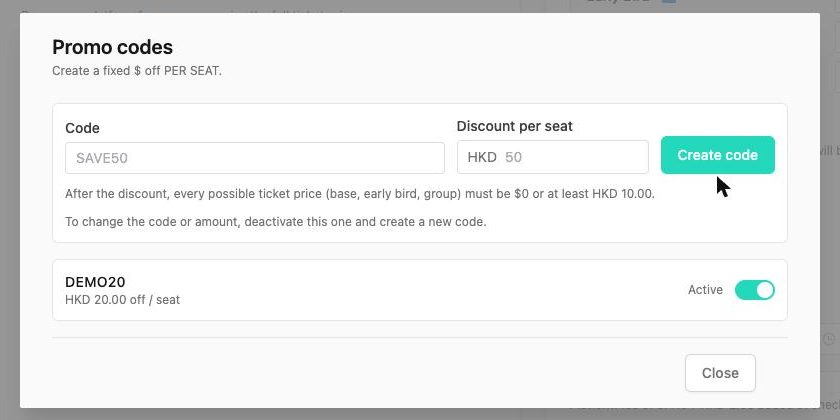
Create a code#
- Open the event → Setting → Ticket card → Promo codes.
- Enter the Code – 4 to 12 letters or numbers, e.g.
SAVE50,RUNCLUB. - Enter the Discount per seat in HKD.
- Click Create code. It appears in the list as Active.
- Close the dialog. (No need to click Update – codes are saved immediately.)
Messages you may see: "Code must be 4–12 letters or numbers.", "Discount must be greater than 0.", "This is ≥ ticket price; attendees can check out for $0." (allowed – it makes the ticket free), "Save the ticket type first." (multi-ticket events: save the ticket type before adding codes to it).
The HKD 10 rule#
Stripe cannot charge tiny amounts, so a code must leave every possible ticket price (base, early bird, each group tier) at exactly HKD 0 or at least HKD 10. Otherwise you get: "This would leave a charge of HKD 5.00 (HKD 25.00 − HKD 20.00). Charge must be $0 or at least HKD 10.00." Change the amount or the ticket price.
The same check runs when you later edit prices: if an active code would break the rule you will be asked to change the price or deactivate the code ("Active promo ‹code› on ‹ticket› would leave a charge of HKD …").
Share and use#
Give members the code; they enter it in the promo code field when joining / paying. The event page price does not change – the discount appears at checkout. In the admin, a member's payment record shows the Applied promo code.
Change or stop a code#
Codes cannot be edited – "To change the code or amount, deactivate this one and create a new code."
- Toggle Active → Inactive to stop it. Confirm "Deactivate this promo code? People who already entered this code will not be able to pay with it." Members who already paid with it are unaffected.
- Create a new code with the new amount.
Multiple ticket types#
With multiple ticket types, open Promo codes inside a ticket type – "This code only works when buying this ticket type." Create the same code on several ticket types if it should work for all of them.
Limits and tips#
- There is no usage counter or expiry date on a code – deactivate it manually when the campaign ends, or set your sign-up deadline accordingly.
- Percentage discounts are not supported; use a fixed amount per seat.
- Combine with early bird or group tiers freely – the promo is subtracted after the price is determined.
- Duplicated events do not copy promo codes.