
Build a sign-up form
Ask members questions when they join – four question types, required fields, remarks, editing the form later and reading the responses.
A Sign Up Form collects information while people join: T-shirt size, skill level, emergency contact, dietary needs, how they heard about you. Each event has one form; it is optional.
The form is created after the event exists: Setting tab → Sign Up Form card → Create Form (later Edit Form).
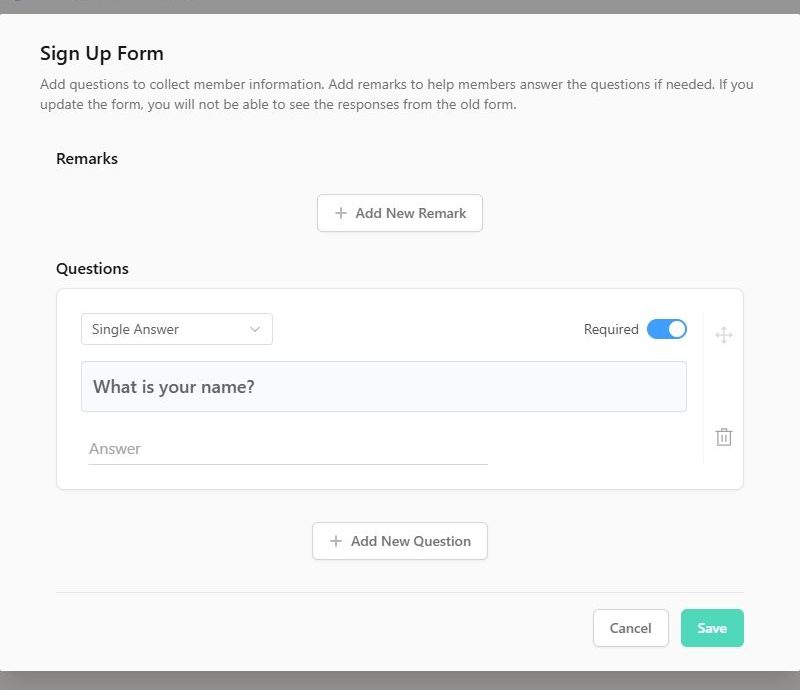
Parts of the form#
Remarks#
Free text shown above the questions – instructions, a waiver text, a link to your rules. Click Add New Remark, give it a title and content (formatting, links and images allowed). You can add several and reorder them.
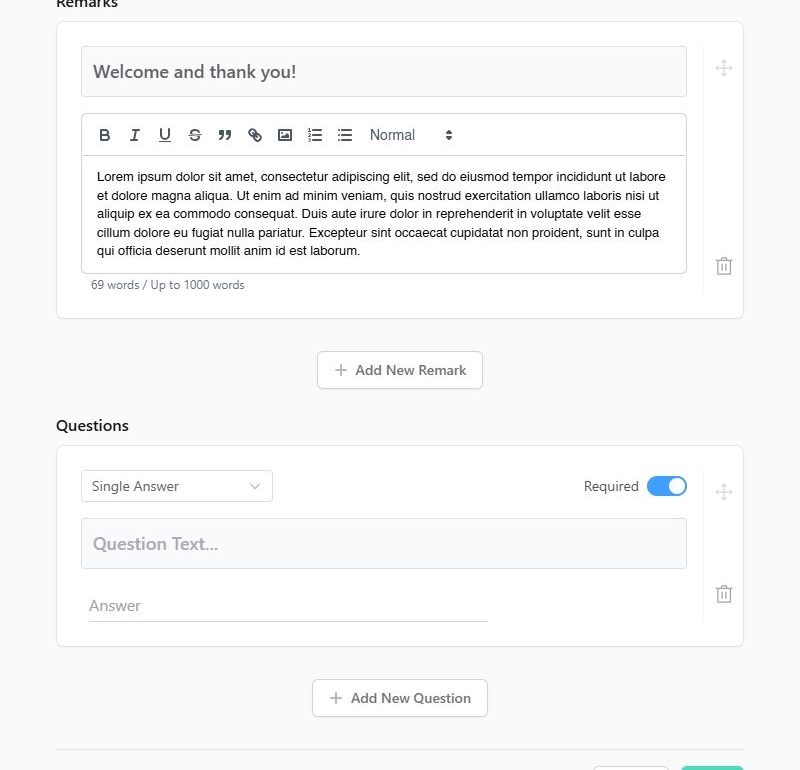
Questions#
Click Add New Question, pick the type, type the question text and toggle Required.
| Type | Member sees | Extra option |
|---|---|---|
| Single Answer | One text box | – |
| Multiple Answer | Several text boxes ("add answer") | Max. Answers – how many they may give |
| Single Select | Radio buttons – pick one option | Add / remove options |
| Multiple Select | Checkboxes – pick several | Add / remove options, optional max answers |
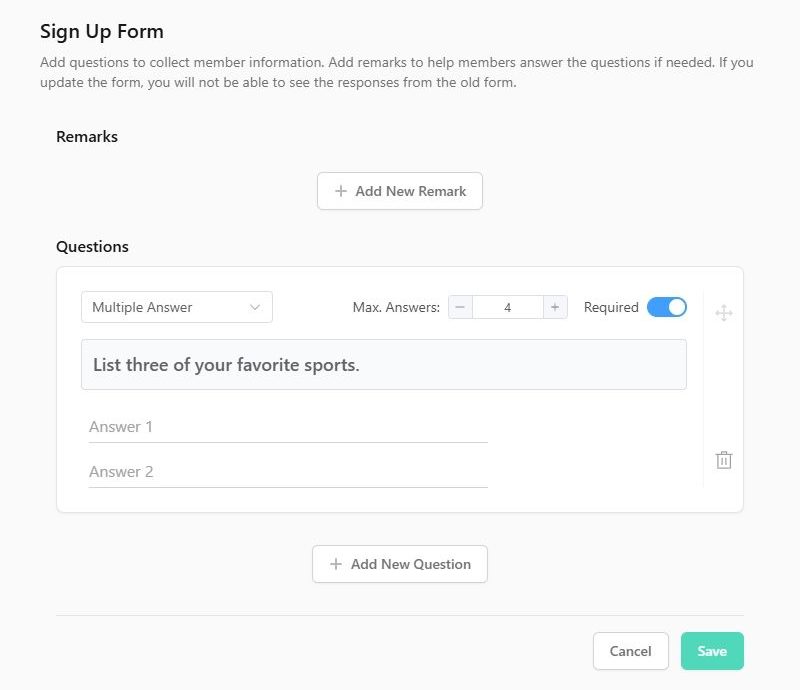
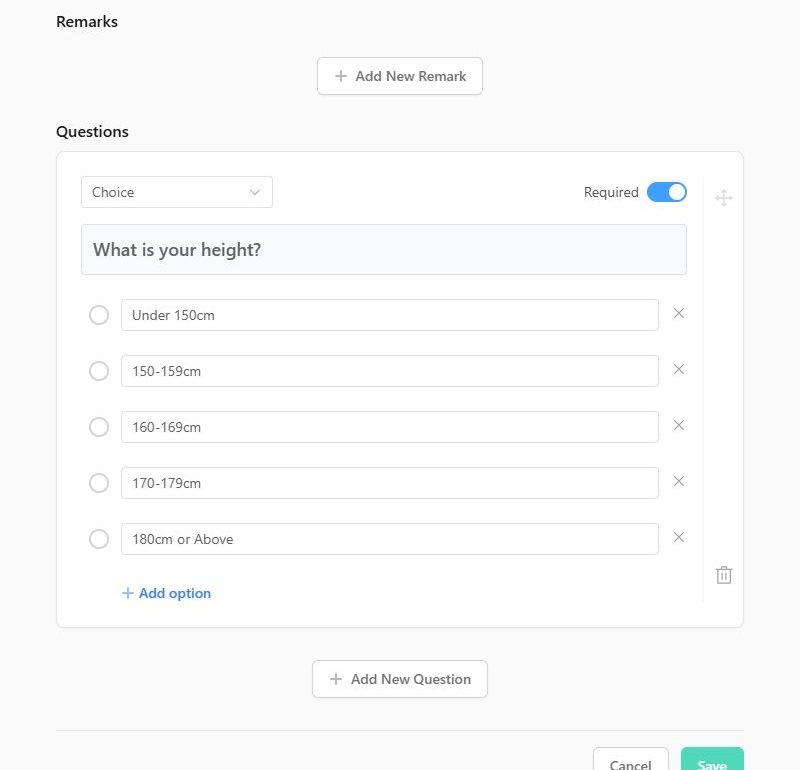
Drag the handle to reorder questions; the bin icon deletes one. Validation: question text cannot be empty, choice questions need at least one option, options and remark titles cannot be empty.
Click Save – "Save change successful".
Editing the form later – read this first#
Changing a form that already has responses creates a new version:
- The admin warns: "Are you sure to update the form to a new version? After that, you cannot modify any submitted form from old versions. And if you remove any questions, you cannot view any answers of them."
- Old responses stay readable (marked Outdated response) but cannot be edited.
- Deleting a question deletes the ability to see its answers – export or note them first.
Safe changes: adding a remark, adding a question. Risky: deleting or retyping questions after sign-ups started.
Reading responses#
- Per member: Member tab → card → Sign Up Form → Responses / View response.
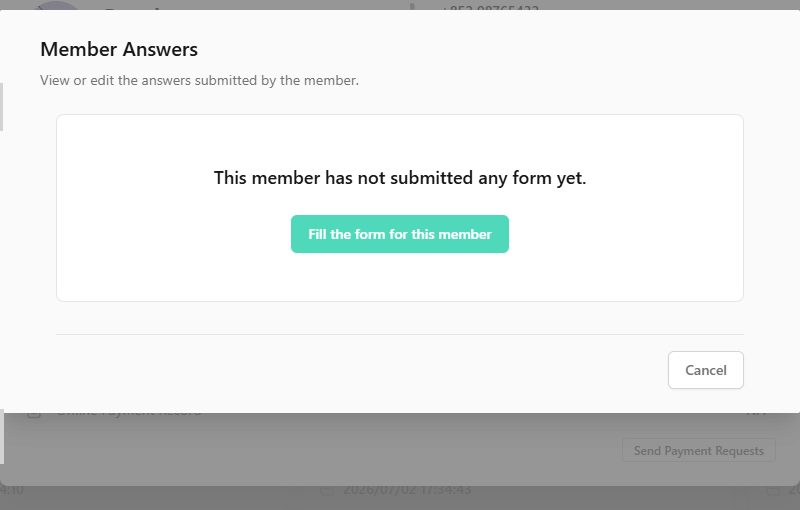
- Answer on someone's behalf: Create response / Fill the form for this member (for people you added manually or who booked by phone). Required questions must be answered; Max. Answers limits apply.
- Export to CSV (Manage) includes the member list; use the response view for the detailed answers.
Duplicating events#
The sign-up form (questions and remarks) is copied when you duplicate an event; responses are not.
Teams#
Teams do not have a sign-up form – use the Internal Record fields (Role/Position, Number, Remarks) on each team member instead.