
Duplicate an event
Copy an event to reuse its description, poster, settings and sign-up form for the next edition – and exactly what is not copied.
Running the same event again? Duplicate it instead of retyping everything.
Where#
- Home → Events list view → Duplicate on the event's row, or
- open the event → Setting tab → Duplicate event card → Duplicate event.
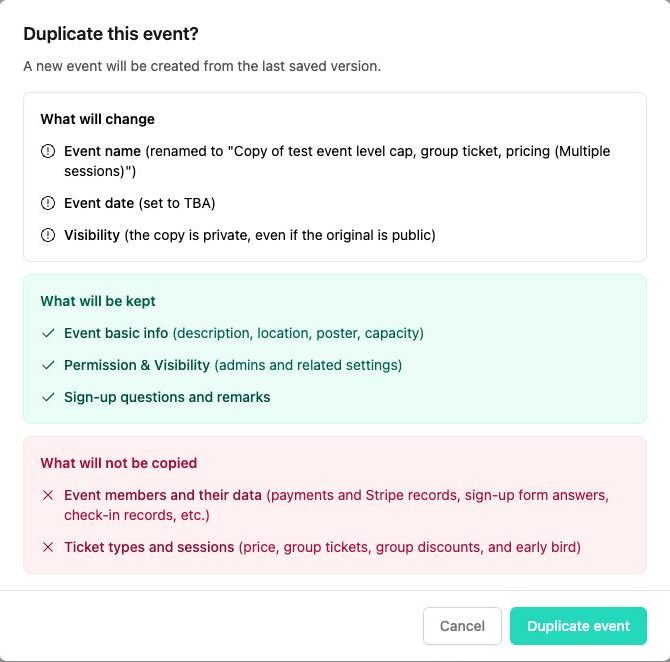
A summary dialog appears before anything is created.
What the copy looks like#
| In the copy | |
|---|---|
| Event name | "Copy of ‹original name›" – rename it in Information → Edit. |
| Event date | To be Announced – set the new date in Setting. |
| Visibility | Private, even if the original is public – so nothing shows on Explore until you are ready. |
| Description, location, poster, capacity | Kept |
| Permission & Visibility (admins, approval, RSVP list, contact e-mail) | Kept |
| Sign-up form questions and remarks | Kept (a fresh form with no responses) |
| Payment type (Free / Paid), price, early bird, group tickets, group discounts | Kept for a single-ticket event |
| Members and their data – payments and Stripe records, form answers, check-ins | Not copied |
| Ticket types and sessions (multi-session events) | Not copied – recreate them |
| Promo codes, notices | Not copied |
The copy is made from the last saved version – unsaved changes on the Setting page are ignored.
After duplicating#
- You see "Duplicated as ‹Copy of …›". Open the copy from the Events list.
- Information → Edit: fix the name, swap the poster if needed.
- Setting: untick Event date to be Announced and set the dates; check the sign-up deadline and early-bird Before date – they must be before the new start.
- Recreate promo codes and, for multi-session events, sessions and ticket types.
- Switch Event Visibility to Public (if wanted) and click Update.
If duplication fails you will see "Failed to duplicate this event." – usually a temporary network problem; try again.
Was this article helpful?Thanks for the feedback! Still stuck? Email us.