
Create a team
Set up a recurring group – photo, name, description, location, public or invite-only, and the two auto-add settings that save you work later.
A Team is a group of members who meet repeatedly – a class, a squad, a training crew. Teams have a calendar of activities, attendance, materials and notices. They do not sell tickets; use an event for that.
Create the team#
- Home → Teams (Beta) tab → Create Team.
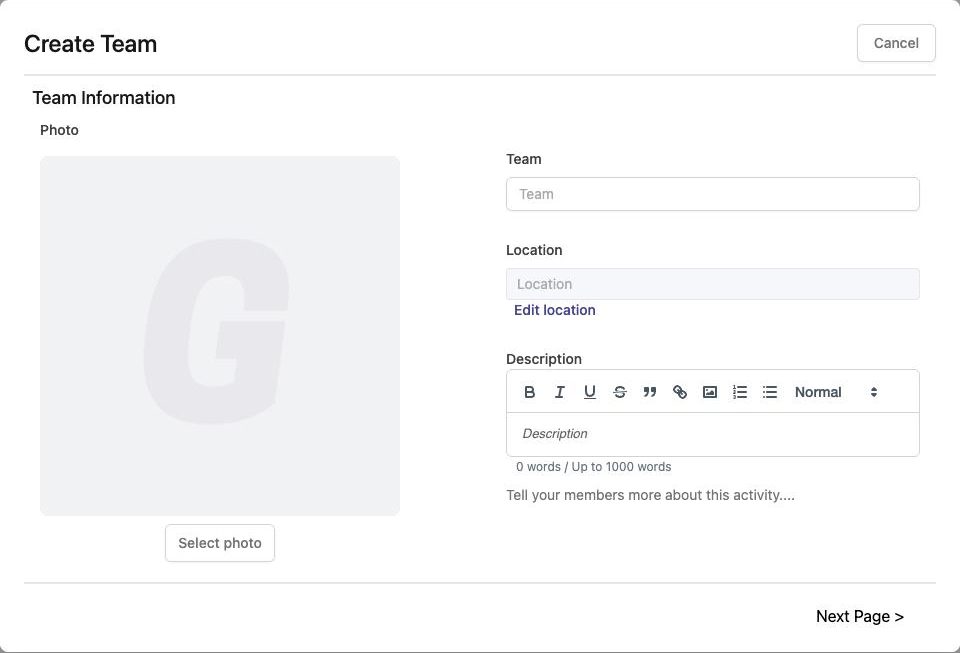
- Team Information – Select photo (square works best), Team name, Location (Edit location opens the map picker) and a Description of up to 1000 words. Click Next Page >.
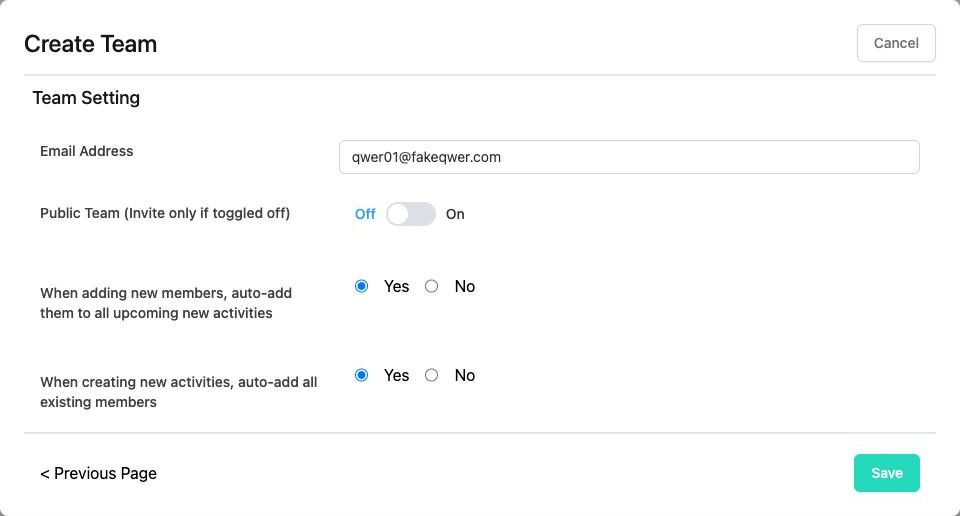
- Team Setting:
- Email Address – contact e-mail shown to members (pre-filled with yours).
- Public Team (Invite only if toggled off) – On lists the team on theground.io so people can find it and ask to join; Off means members join only through your invitation link.
- When adding new members, auto-add them to all upcoming new activities – Yes means a new member is immediately expected at every future activity (typical for a class).
- When creating new activities, auto-add all existing members – Yes means every new activity starts with the whole team on its attendance list.
- Click Save. "Team creation successful."
The team dashboard#
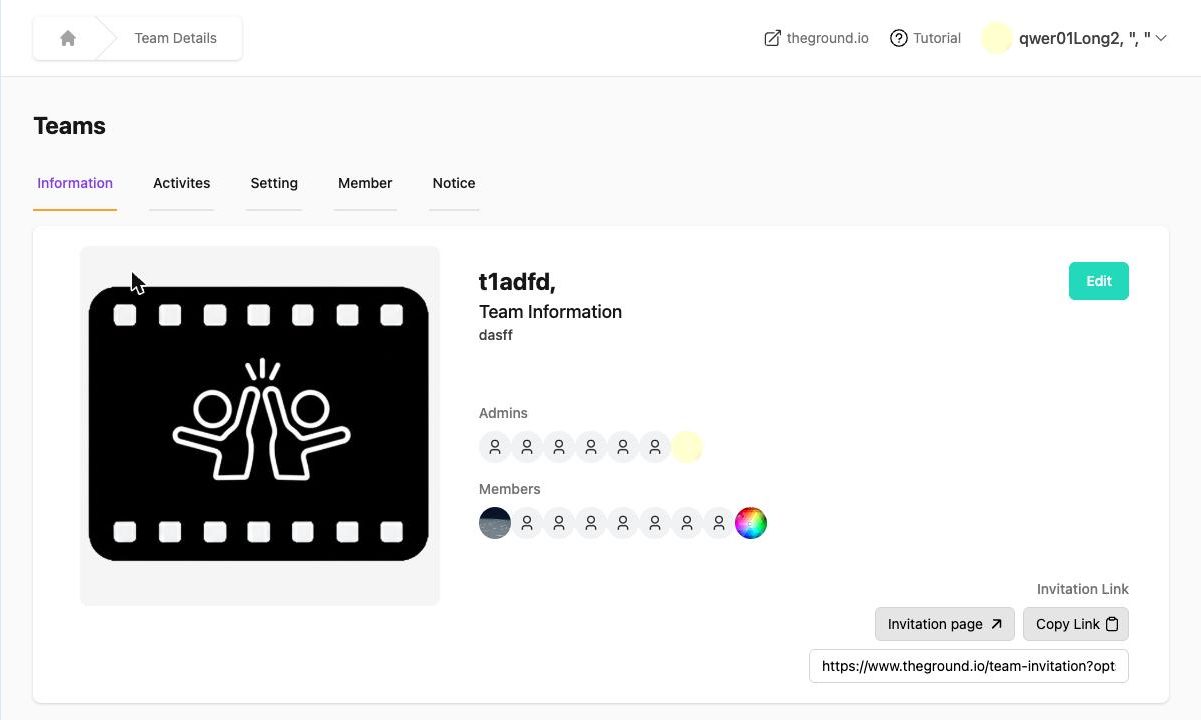
| Tab | What it is for |
|---|---|
| Information | Photo, description, admins, members and the Invitation Link (Invitation page to preview, Copy Link to share). Edit changes photo, name and description. |
| Activites | The calendar and list of activities; add single or repeating activities. Team activities → |
| Setting | Admins, Tag, e-mail, Public Team toggle, the two auto-add toggles, and Delete. |
| Member | The member table (name, phone, e-mail, join time, status) and Manage. Members → |
| Notice | Announcements to the whole team. Notices → |
Limits#
Free-plan organizations can have up to 100 teams; premium organizations need an active subscription to create teams ("You have reached the maximum number of courses for free plan" / greyed Create Team). See Plans and limits.
Deleting a team#
Setting tab → Delete → confirm. Activities, attendance and notices are deleted with it; members stay in your organization.
Was this article helpful?Thanks for the feedback! Still stuck? Email us.