
Event settings explained
A map of the Setting tab – the Time & Venue, Permission & Visibility, Payment and Ticket cards, the sign-up form, duplicate, cancel and delete.
Open an event and click the Setting tab. Everything you set in the wizard is here, plus a few things that only exist after creation (promo codes, the sign-up form, duplicate / cancel / delete).
Changes are applied when you click Update (top right). Cancel discards them. If you leave with unsaved changes the admin asks you to confirm.
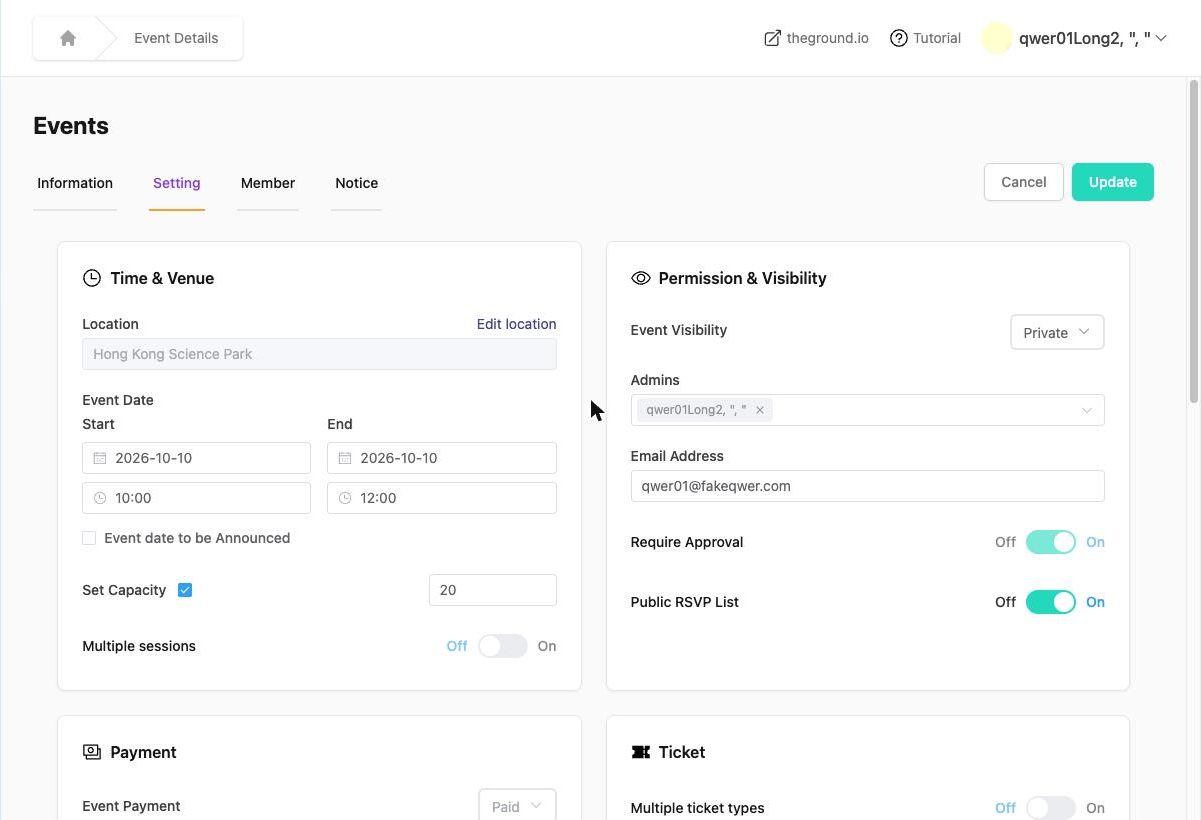
Time & Venue#
Location (Edit location opens the map picker), Start / End date and time, Event date to be Announced, Set Capacity, and the Multiple sessions switch. When sessions are on, the session cards and Add session appear here. Dates → · Sessions →
Permission & Visibility#
- Event Visibility – Public / Private.
- Admins – pick organization admins who should manage this event; they get access to its dashboard. Event admins →
- Email Address – contact e-mail shown on the event page.
- Require Approval, Public RSVP List. Details →
Payment#
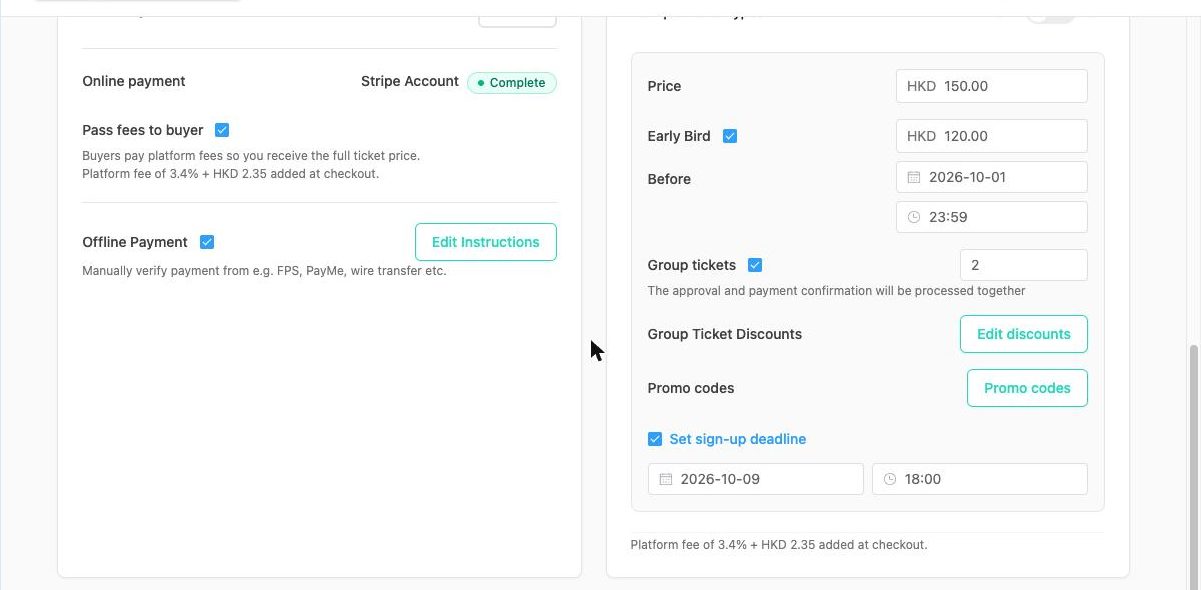
- Event Payment (Free / Paid) – shown greyed: it cannot be changed after creation.
- Online payment – Stripe Account status badge.
- Pass fees to buyer – tick to add the 5% + HKD 2.35 ticket fee at checkout.
- Offline Payment – tick plus Edit Instructions.
Ticket#
- Multiple ticket types switch (locked once on).
- Price, Early Bird (+ Before date/time), Group tickets (+ max per person), Group Ticket Discounts (Edit discounts), Promo codes (Promo codes), Set sign-up deadline.
- With multiple ticket types this card becomes a ticket-type editor with Ticket 1 of N paging, Add ticket type and per-ticket settings.
Early bird → · Group tickets → · Promo codes →
Sign Up Form#
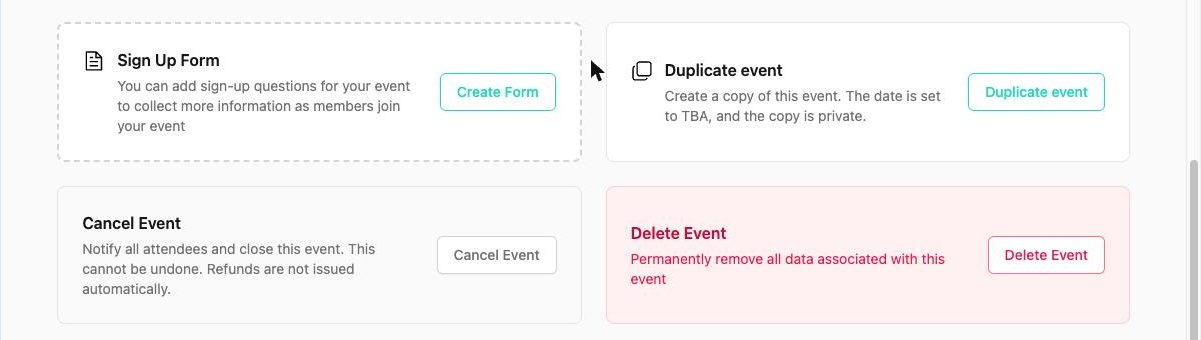
Create Form / Edit Form – the questions and remarks members answer when joining. One form per event. Sign-up form →
Duplicate, Cancel, Delete#
| Action | What it does | Reversible? |
|---|---|---|
| Duplicate event | Creates "Copy of …" as a private, TBA event with the same info and form, without members. | Yes – just delete the copy. |
| Cancel Event | Notifies every attendee by e-mail and WhatsApp, closes the event. Refunds are not automatic. | No |
| Delete Event | Permanently removes the event and all its data (members, payments records, answers, check-ins). | No |
Duplicate → · Cancel or delete →
Things that are not in Setting#
- Poster, name and description → Information tab → Edit.
- Approving members, payments, check-in → Member tab.
- Messages to attendees → Notice tab.