
Track and manage payments
Where payment statuses live, how to read Stripe transactions and offline records, change a status, and send payment reminders.
All payment work happens in the event's Member tab. Each member card shows two chips: the approval status (Approved / Pending / Declined) and the payment status (Pending / Submitted / Paid / Invalid …). Click a card to open the member.
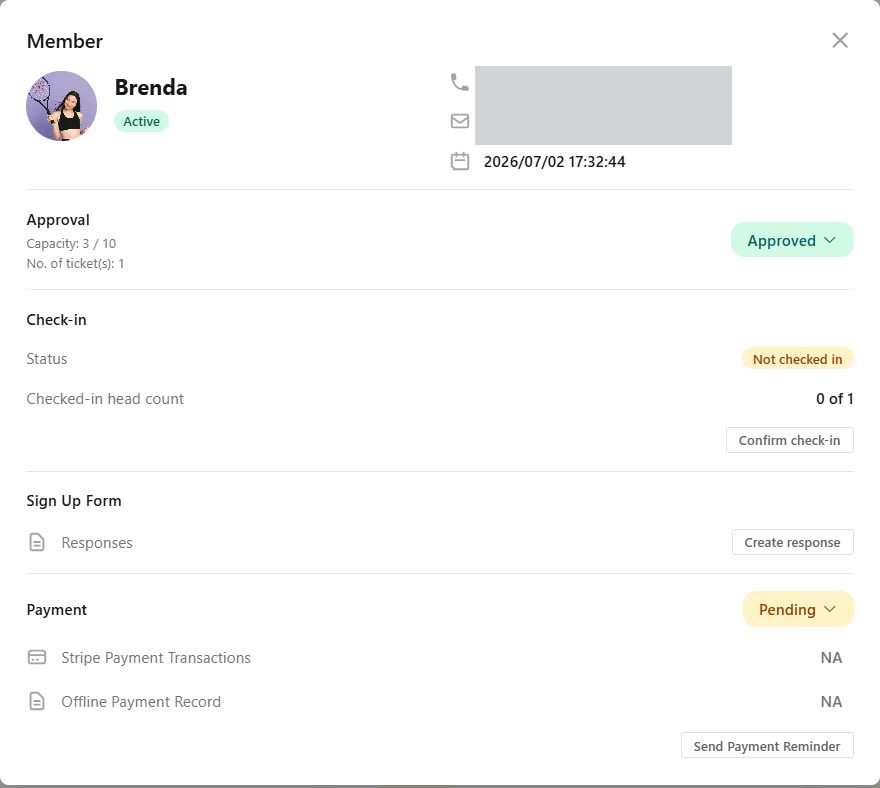
The Payment section of a member#
| Element | What it tells you / does |
|---|---|
| Payment dropdown | The current status. Change it to Paid, Invalid, Submitted, Pending or To Be Confirmed; a confirmation asks "Do you want to update the payment status to …?". Stripe payments are set to Paid automatically. |
| Stripe Payment Transactions | Opens the member's payment page listing every Stripe transaction: Payment ID, Amount Paid, Organizer Amount (what you receive after fees), Payment Method, Status, Payment Start Time, Applied promo code – and the Refund action. NA means no Stripe payment yet. |
| Offline Payment Record | The screenshot / details the member uploaded for an FPS / PayMe payment. NA means nothing submitted. |
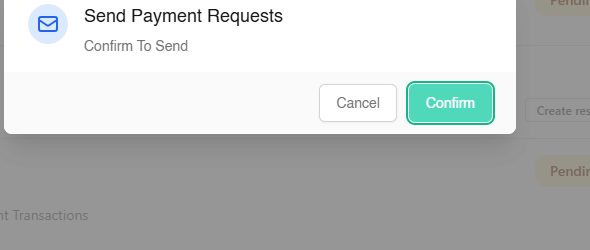
| Send Payment Reminder | Sends the member the payment page link. Confirm with Confirm; you see "Payment request sent successfully." |
Typical workflows#
Stripe (card / Apple Pay / Google Pay)#
Nothing to do: when the member pays, the status flips to Paid and the transaction appears under Stripe Payment Transactions. Approve the member if approval is still pending. Money settles in your Stripe balance and pays out on your schedule (Payouts).
Offline (FPS / PayMe / transfer)#
Member uploads proof → status Submitted → you check your bank and set Paid (or Invalid). Details in Offline payments.
Member joined but never paid#
Status stays Pending. Send a Payment Reminder; if they still do not pay before your deadline, set their approval to Declined or remove them (Manage → Remove Members) to free the seat.
Member paid the wrong amount or paid twice#
Stripe: refund the extra from the transaction's Refund action (Refunds). Offline: return it by FPS / PayMe and note it in the member's Internal Record (Remarks).
Status reference#
| Status | Where it comes from |
|---|---|
| Pending / Waiting for submission | Default for a paid event until money arrives |
| Submitted | Member uploaded an offline payment record |
| Paid / Succeeded | Confirmed – automatically for Stripe, manually for offline |
| Invalid | You rejected an offline record |
| To Be Confirmed | Manual "checking" state |
| Refunded / Partially Refunded | A Stripe refund was issued |
| Failed | A Stripe charge failed – the member should try again |
Exporting#
Manage → Export to CSV downloads the member list with approval and payment status, useful for reconciling with your bank statement.
Stripe Dashboard#
For reports, payout timing, disputes and tax documents open Organization Settings → Stripe Payment → Go to Stripe Dashboard.