
Check people in with QR codes
Scan attendees' QR tickets with your phone or confirm arrival manually, handle group head counts, review check-in records and fix common errors.
Every approved member has a ticket with a QR code in My events on theground.io. At the door you can scan it or check them in from their member card.
Option 1 – Scan the QR code (phone)#
The member's QR code is a link to the admin's Event check-in page, so any phone camera or QR app works – there is no separate scanner app to install.
- Make sure you are logged in to admin.theground.io on your phone (the check-in page requires an admin login).
- Ask the member to open their ticket in My events on theground.io and show the QR code.
- Point your phone's camera (or any QR reader) at it and open the link. The Event check-in page opens in your browser and validates the code.
- The page shows the event name, the member and how many seats the booking has. For group tickets, choose the Head count to check in (how many of the group have arrived) – you can check in the rest later.
- Tap Confirm check-in. You see "‹Name› checked in successfully" – scan the next person, or tap View event & check-in records to jump to the event's Member tab.
If the member was already checked in you get "This member already checked in at ‹time›"; partially checked-in groups show "Already checked in 2 of 3. You can check in more attendees." with Update head count.
Option 2 – Confirm manually#
Member tab → click the member → Check-in section → Confirm check-in (for groups: enter the head count, "Check in 2 of 3?"). Only approved members can be checked in – "Check-in is only available for approved members."
Check-in records#
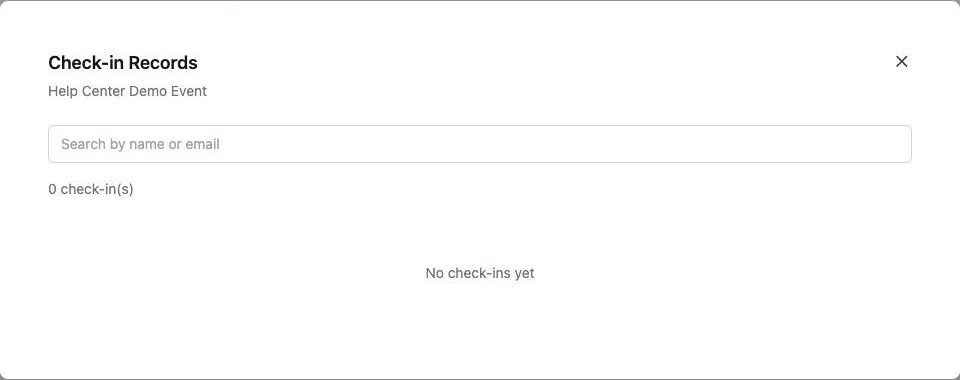
Manage → Check-in records lists everyone checked in with Checked in at and Checked in by, a total ("12 check-in(s)") and a search box by name or e-mail.
Who can scan#
Anyone who can manage the event – the organization's admins and the event's admins – while logged in to the admin on their phone. Helpers without access see "You do not have permission to manage check-in for this event". Add door staff as event admins beforehand and remove them afterwards.
Errors and what they mean#
| Message | Cause | Fix |
|---|---|---|
| Invalid check-in link. Please scan the QR code again. | The link opened without its code (incomplete scan, or typed by hand) | Scan again with the camera |
| Invalid or tampered check-in token | Screenshot of a modified/old code | Ask the member to open the live ticket in the app |
| Check-in token has expired | The QR code in the member's app refreshed | Ask them to reopen the ticket and scan the new code |
| This QR code is for a different event | The ticket is for another one of your events | Check which event the member actually booked |
| Check-in period has ended for this event | The event has ended | Use manual check-in on the member card if you still need a record |
| You are unauthorized. Please log in again. | You are not logged in to the admin on this phone, or the session expired | Log in, then scan again |
Tips for event day#
- Print or save the member list (CSV) as a backup in case of poor signal.
- Log in to the admin on every phone that will scan, before the event starts.
- Two people scanning at once is fine – records update live.
- After the event, the check-in records tell you your no-show rate – useful for deciding on deposits or waitlist sizes next time.