
Team notices and the pinned doc
Send announcements to a team by e-mail, WhatsApp and app notification, choose who receives them, and pin a PDF to the team card.
Team notices#
The Notice tab of a team works like an announcement board with delivery: every notice can be sent by e-mail, WhatsApp and app notification at the same time.
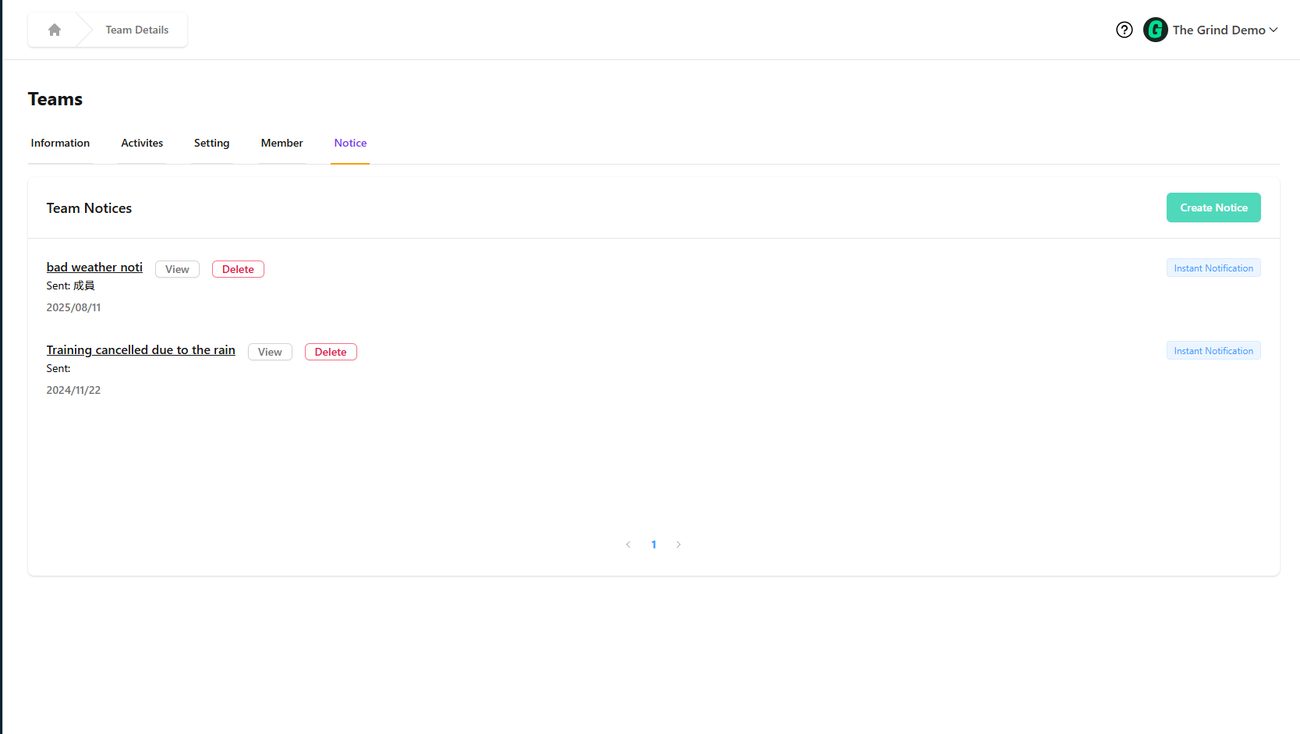
- Open the team → Notice tab → Create Notice.
- Title (required), then Text (up to 1000 words, formatted) or PDF.
- Receiver – pick the members who should get it ("Please select at least one receiver."), or everyone.
- Tick Send WhatsApp/Email notification to deliver it immediately to their phones and inboxes; leave it off to just post it in the app.
- Click Create Notice.
The list shows every notice with its Sent date. View opens it, the delete icon removes it.
Good uses: weather cancellations, venue changes, fixture lists, term dates, fee reminders.
Pinned doc#
Each team can show one Pinned Doc – a PDF that appears on the team's card on the Home page and to members (rules, term schedule, waiver). On the Teams list, use Upload in the team's row ("Support PDF Only"). Replace it by uploading another file; Empty means nothing pinned.
Notices vs. materials#
| Want to… | Use |
|---|---|
| Tell everyone something now | Notice with WhatsApp/e-mail on |
| Share a document members should keep finding | Pinned Doc (team-wide) or Materials on an activity |
| Send a video of today's drills | Materials on the activity – Materials → |
Event notices work slightly differently (push notification only) – see Send notices to attendees.