
Create your admin account
Sign up with Google or with an e-mail and password, complete your phone number, and what to do if you forget your password.
Go to admin.theground.io. You will land on the sign-in page.
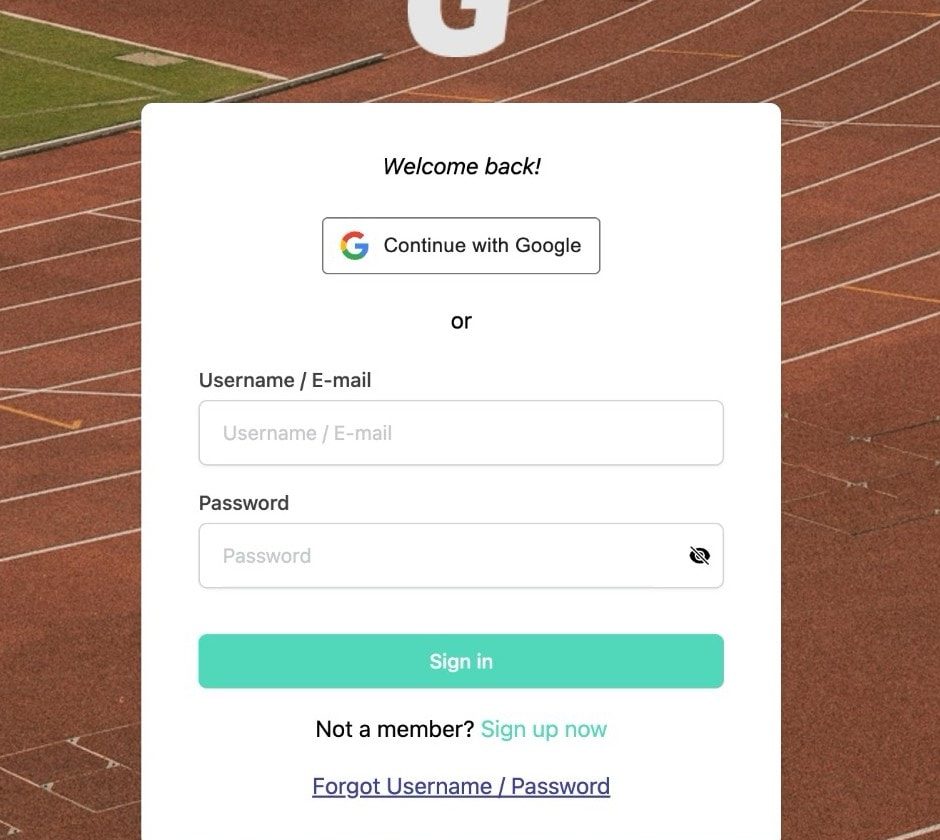
Option 1 – Continue with Google#
- Click Continue with Google and pick the Google account you want to use.
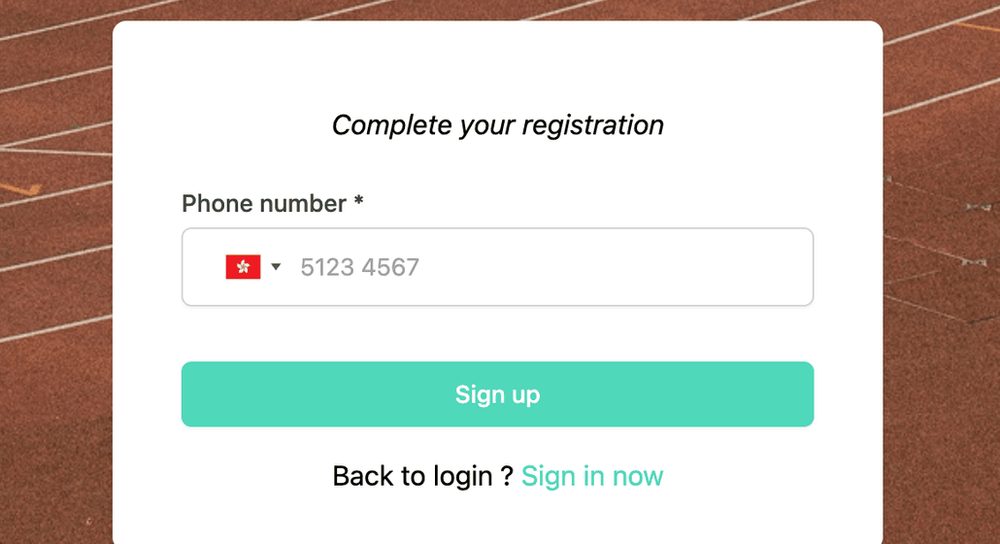
- The first time, you are asked to complete your registration with a phone number. Pick your country code (the field pre-selects the country you are in) and enter the number.
- Click Sign up. You are taken straight into the admin.
Option 2 – Sign up with e-mail#
- Click Sign up now under the sign-in button.
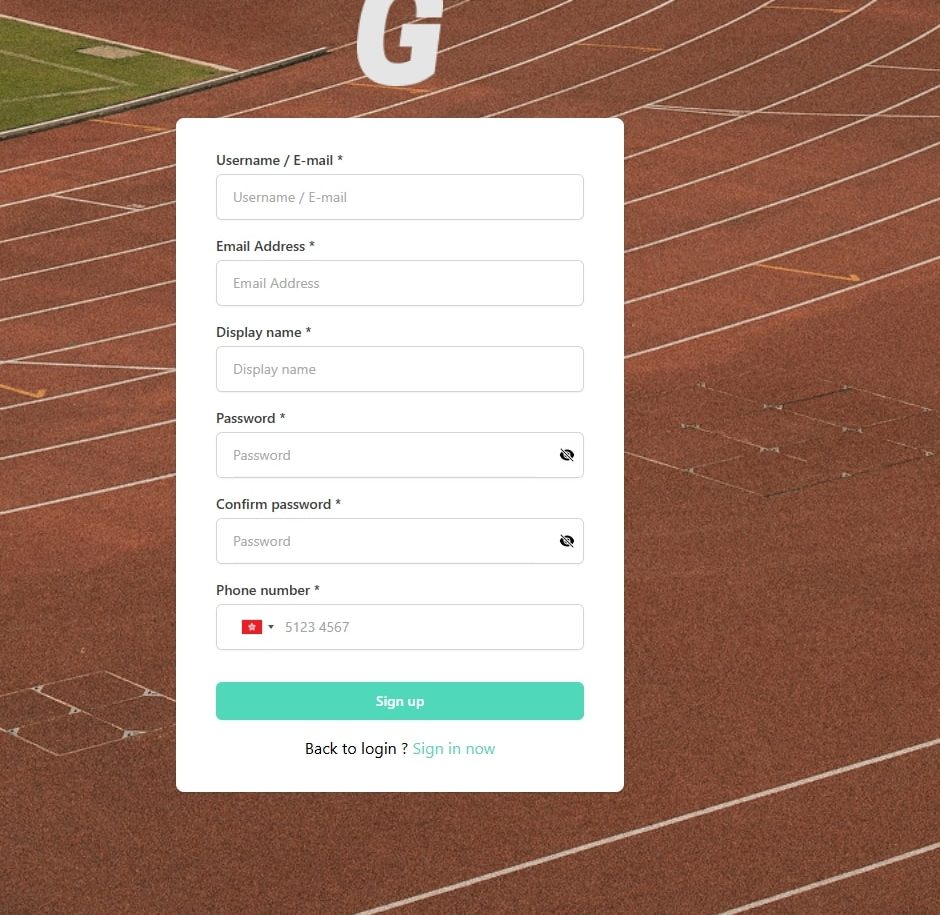
- Fill in the form – every field is required:
- Username / E-mail – the login ID you will type when signing in. It can be a short username or your e-mail address.
- Email Address – where password-reset and system e-mails are sent.
- Display name – shown to members as the organizer / admin name.
- Password and Confirm password – at least 8 characters, including at least one uppercase letter and one special character (for example
!,@,#,$,%). - Phone number – with country code.
- Click Sign up. If the e-mail is already registered you will see "This email is already registered" – sign in instead, or reset your password.
Signing in later#
Enter your Username / E-mail and password, or use Continue with Google. The eye icon in the password field shows or hides what you typed.
Forgot your username or password?#
- Click Forgot Username / Password on the sign-in page.
- Enter the e-mail address on your account and click Send email. You will see "Reset link sent! Check your email."
- Open the link in the e-mail and choose a new password (same rules as above). The link is single-use and expires – if you see "This link has expired", request a new one.
What happens after you sign up#
If you have never been added to an organization, the home page shows "Start with creating your organization". Continue with Create your organization.
If a colleague invited you as an admin through an invitation link, open that link after creating your account – you will be added as an admin of their organization and see it in the sidebar.
Was this article helpful?Thanks for the feedback! Still stuck? Email us.