
Organization settings
The Information, Contact and Stripe Payment tabs – logo, description, sport tags, Explore-page listing, contact details, social links and deleting an organization.
Sidebar → Organization Settings opens the settings of the currently selected organization (check the name in the sidebar dropdown first). Three tabs.
Information#
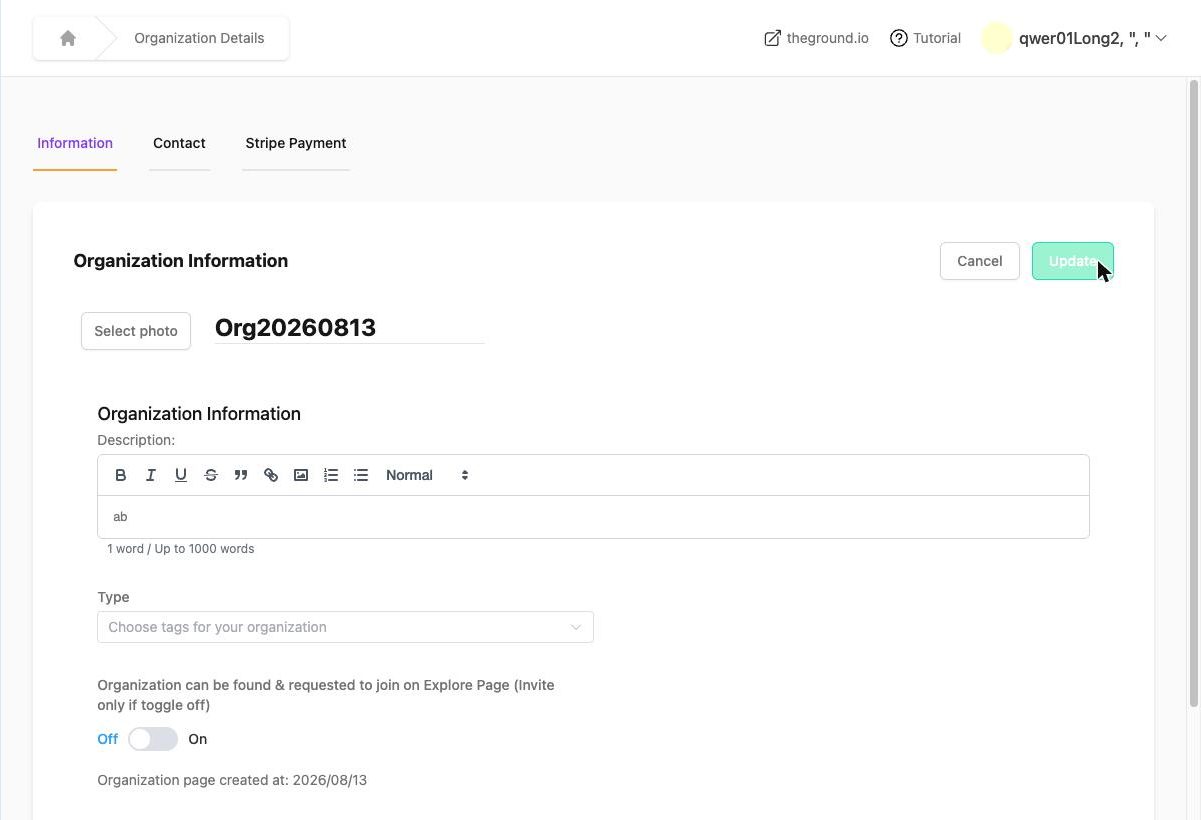
Click Edit, change what you need, then Update ("Organization updated successfully."):
- Photo – the logo, shown as a circle in the sidebar, on event pages and on theground.io. Square, at least 400 × 400 px.
- Name.
- Description – up to 1000 words with formatting, links and images. This is your organization's "about" text on theground.io.
- Type – one or more sport / activity tags used for discovery on the Explore page.
- Organization can be found & requested to join on Explore Page (Invite only if toggle off) – Public (On) or private (Off). See Create your organization.
- Organization page created at – read-only.
- Delete – removes the organization and everything in it (events, teams, members, notices). Irreversible; make sure no paid events are still running.
Contact#
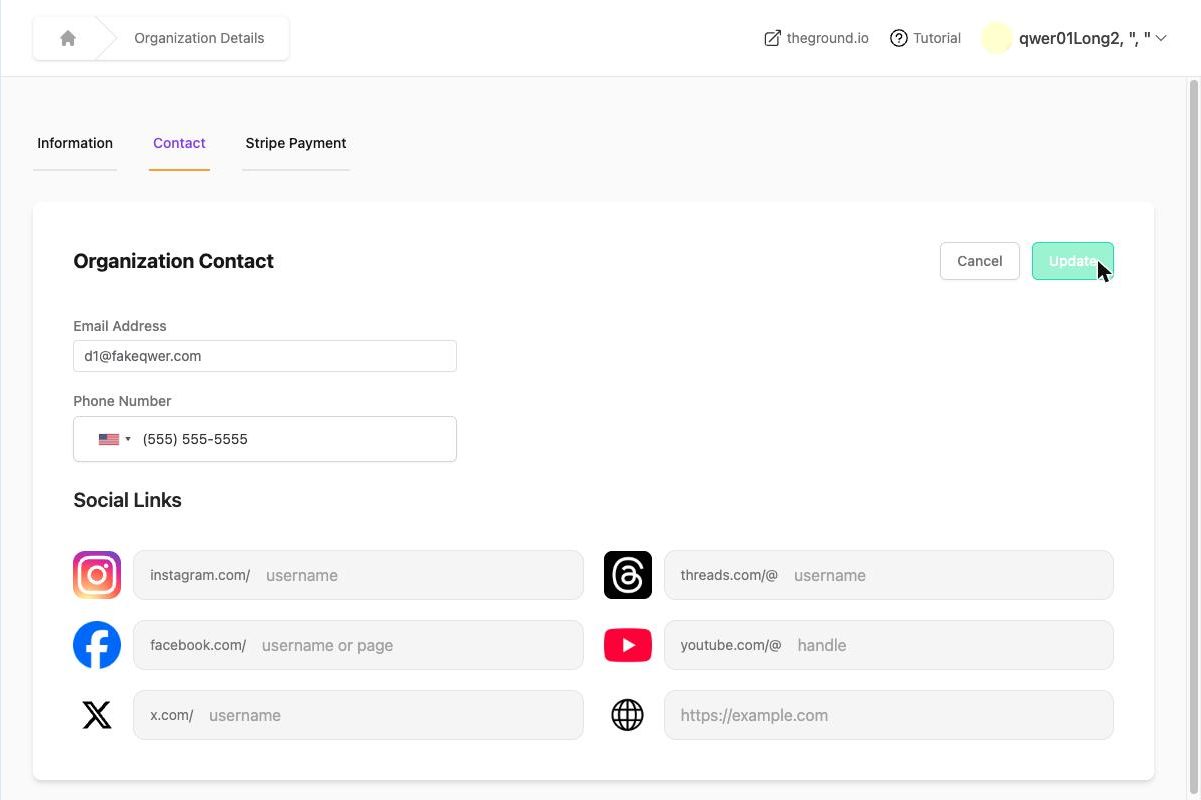
- Email Address – the organization's public contact e-mail. Required before Stripe can be set up; it is also the e-mail used to create the Stripe account.
- Phone Number – with country code; shown under Contact information on event pages.
- Social Links – Instagram, Threads, Facebook, YouTube, X and a website. Enter just the username / handle where the prefix is shown (e.g.
theground.hkafter instagram.com/). Links appear on your organization page.
Click Update to save.
Stripe Payment#
Connect and monitor the organization's Stripe account – status badge, verification requirements, Complete Verification / Go to Stripe Dashboard. Covered in Set up Stripe.
Which admins can change settings?#
Every organization admin can edit all three tabs. There is no read-only admin role – if someone should only manage a specific event, add them as an event admin instead of an organization admin.
Multiple organizations#
Each organization has its own settings, members, admins and Stripe account. Switch with the sidebar dropdown – see Working with multiple organizations.