
Set up Stripe for online payments
Connect your organization to Stripe so members can pay by card, Apple Pay and Google Pay – requirements, the onboarding flow, and what each status means.
Online payments on The Ground run on Stripe Connect. Each organization has its own Stripe account; money goes to your bank, not to The Ground. You only need this for paid events – free events and offline (FPS / PayMe) payments work without it.
Before you start#
- Add the organization e-mail – Organization Settings → Contact → Edit → Email Address → Update. Stripe is created with this e-mail, so use one you can log in with at Stripe. Without it the Stripe tab shows "Add your organization email in the Contact tab, then try again."
- Have your business or personal details ready: legal name, HKID / business registration, address, date of birth, and a Hong Kong bank account for payouts. Stripe verifies identity – this can take a little time.
- Only organization admins can connect Stripe ("You do not have permission to access Stripe Connect for this company" otherwise).
Connect#
- Sidebar → Organization Settings → Stripe Payment tab.
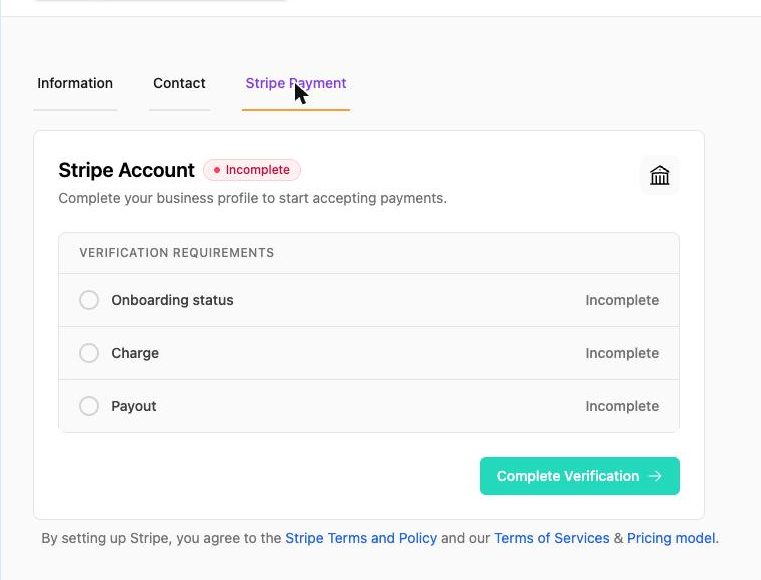
- Click Complete Verification. You are sent to Stripe's onboarding pages.
- Follow Stripe's steps: business type (you can register as an individual), personal / company details, bank account, then confirm. If you already have a Stripe account with the same e-mail, sign in and it will be linked.
- Stripe returns you to the admin (Stripe Account Verification page). Click Back to Home or open the Stripe Payment tab again to see the status.
The three statuses#
| Badge | Meaning | Can members pay? | Payouts? |
|---|---|---|---|
| Incomplete | Onboarding not finished. | No | No |
| Partially Complete | Charges enabled, but Stripe still needs information (usually identity or bank details). "You can enable Stripe payment, but please finish your Stripe setup to enable payouts." | Yes | Not until complete – money accumulates in your Stripe balance |
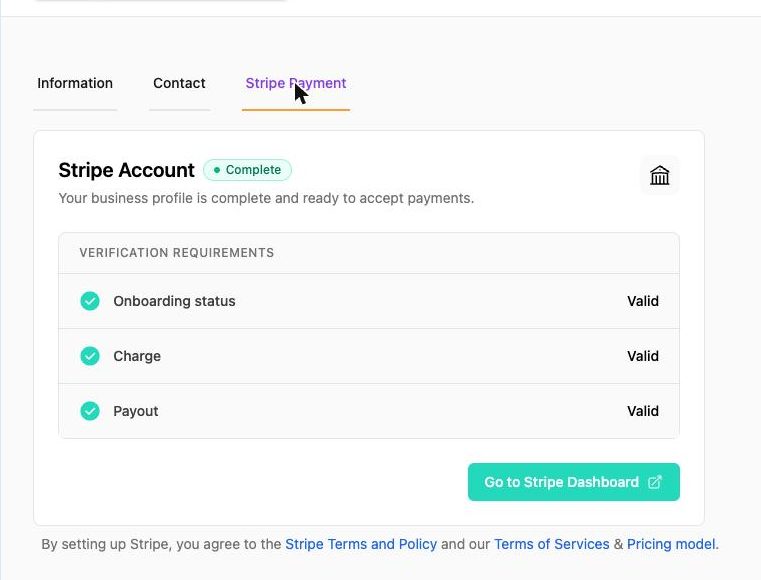
| Complete | Onboarding valid, Charge valid, Payout valid. | Yes | Yes |
The Verification requirements list shows which of Onboarding status, Charge and Payout is still incomplete. Click Complete Verification / Continue Verification to go back into Stripe and finish.
After connecting#
- Every paid event's Online payment line shows Stripe Account · Complete and the Pass fees to buyer option appears. Fees →
- Go to Stripe Dashboard opens your Stripe Express dashboard: balance, payouts, payout schedule, transaction list, tax documents. Payouts →
- Stripe e-mails you when further verification is needed – act on those promptly or payouts pause.
Common questions#
Can several organizations share one Stripe account? No – each organization connects its own. You can use the same login e-mail at Stripe, but the accounts are separate.
Do I need a company? No. Choose Individual in Stripe's onboarding.
Payments were taken while I was "Partially Complete" – where is the money? In your Stripe balance. It pays out automatically once your account is Complete and the first payout schedule runs.
Something is wrong – see Stripe setup errors.