
Share materials (PDF, images, video)
Upload files or YouTube links to team activities and find everything again in My Materials.
Materials are files you share with members: a training plan (PDF), a court map (image), a technique video (MP4 or YouTube link). They are attached to team activities and collected for you under My Materials.
Add materials to an activity#
- Open the team → Activites → click the activity → Materials → Add Materials.
- Enter a Video/Image Title (required – "Please fill in video/image title").
- Either paste a Video Link (YouTube links only – "Only support YouTube link") or Choose file – supported: pdf, png, jpeg, jpg, mp4.
- Click Upload. "File uploaded successfully."
The activity's Materials table lists each item with a thumbnail, file type / video link and a Remove action. Members open them from the activity in the app.
My Materials#
Sidebar → My Materials shows every file you have uploaded across all teams and activities, newest first, with paging.
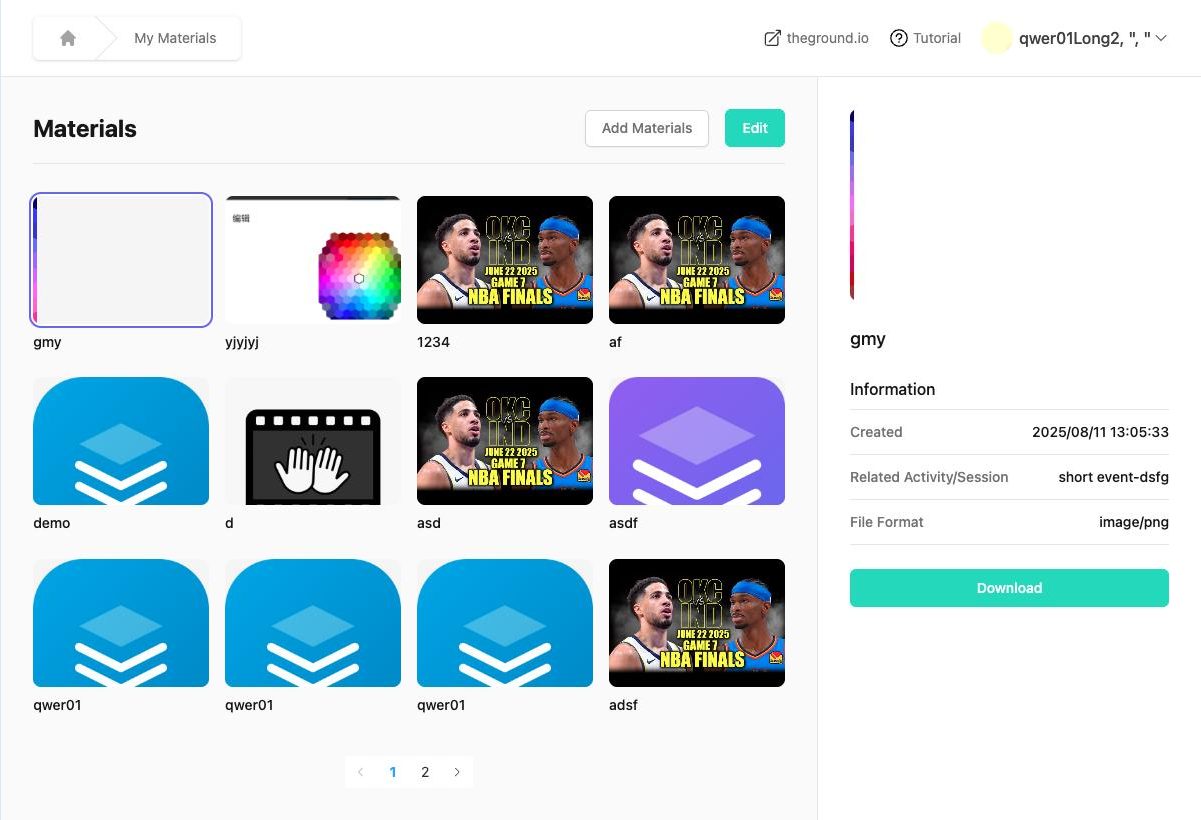
- Click a tile to see its Information: created date, Related Activity/Session, File Format, and a Download button.
- Add Materials here uploads a file that is not tied to an activity yet.
- Edit switches to selection mode to delete files ("Please select materials"). Removing a file here also removes it from the activity it was attached to.
Where materials do not appear#
Events do not have a Materials section – put links in the event description or send a Notice with a PDF instead. For a document every team member should always see, use the team's Pinned Doc (Team notices and pinned doc).